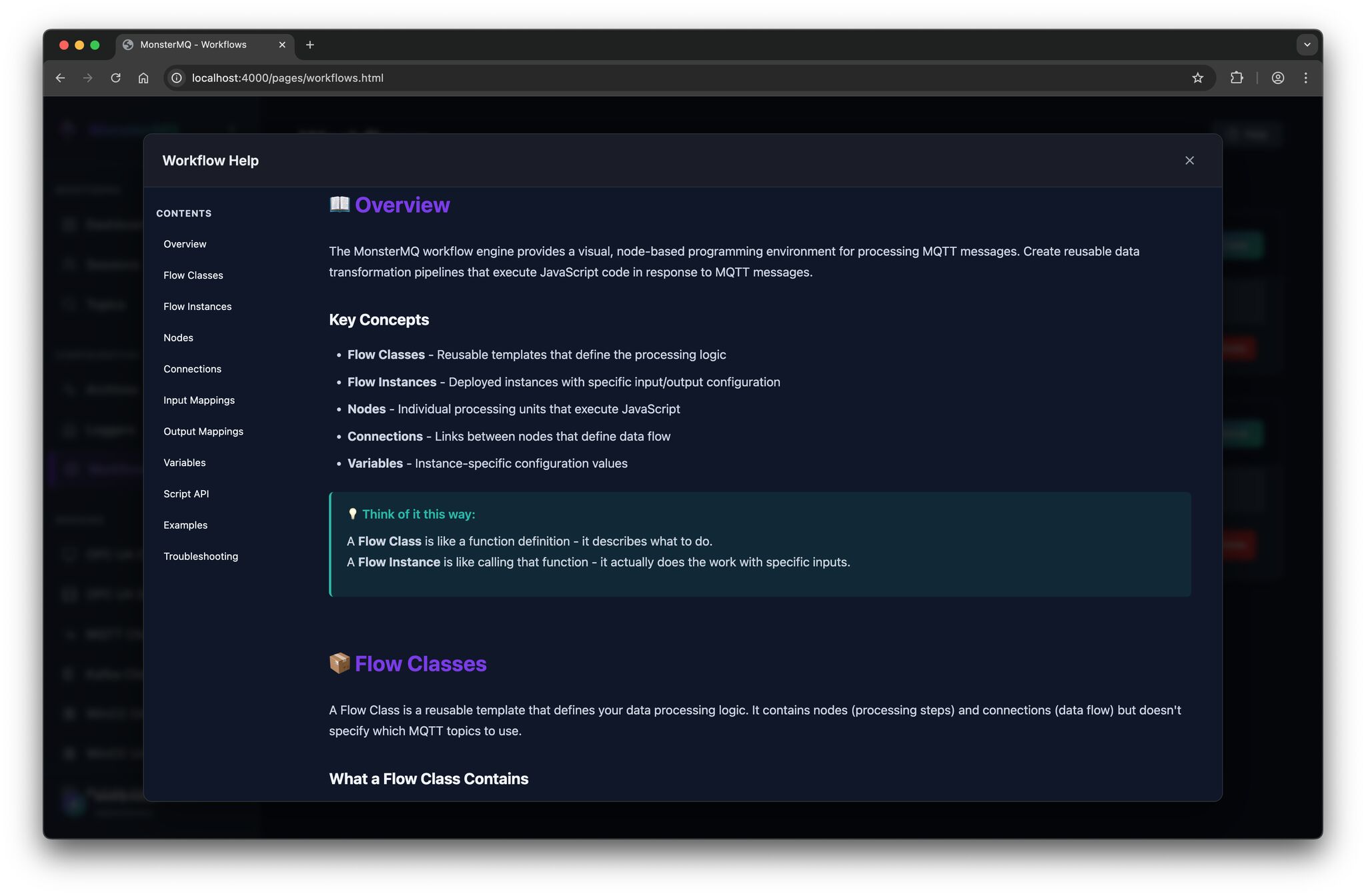
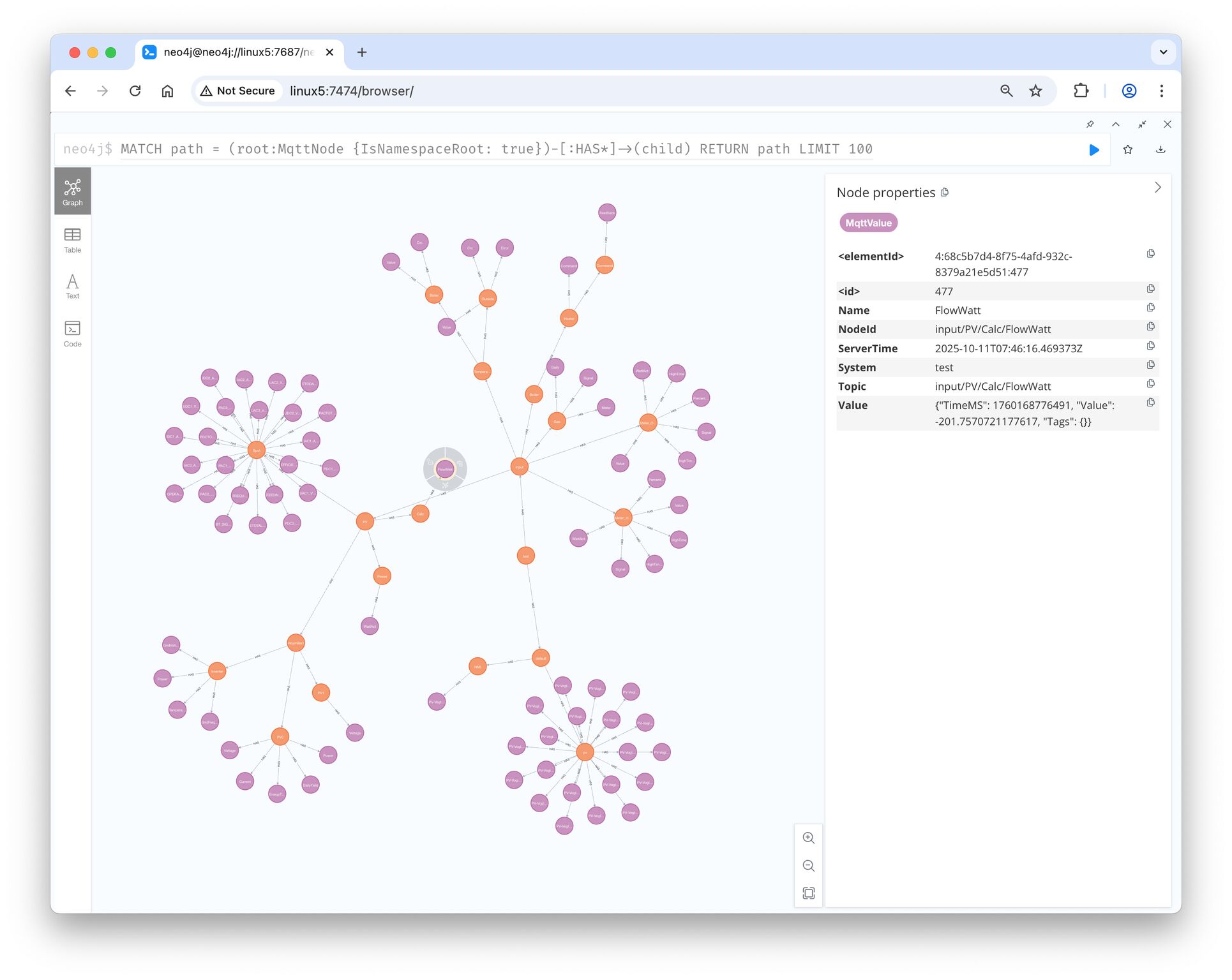
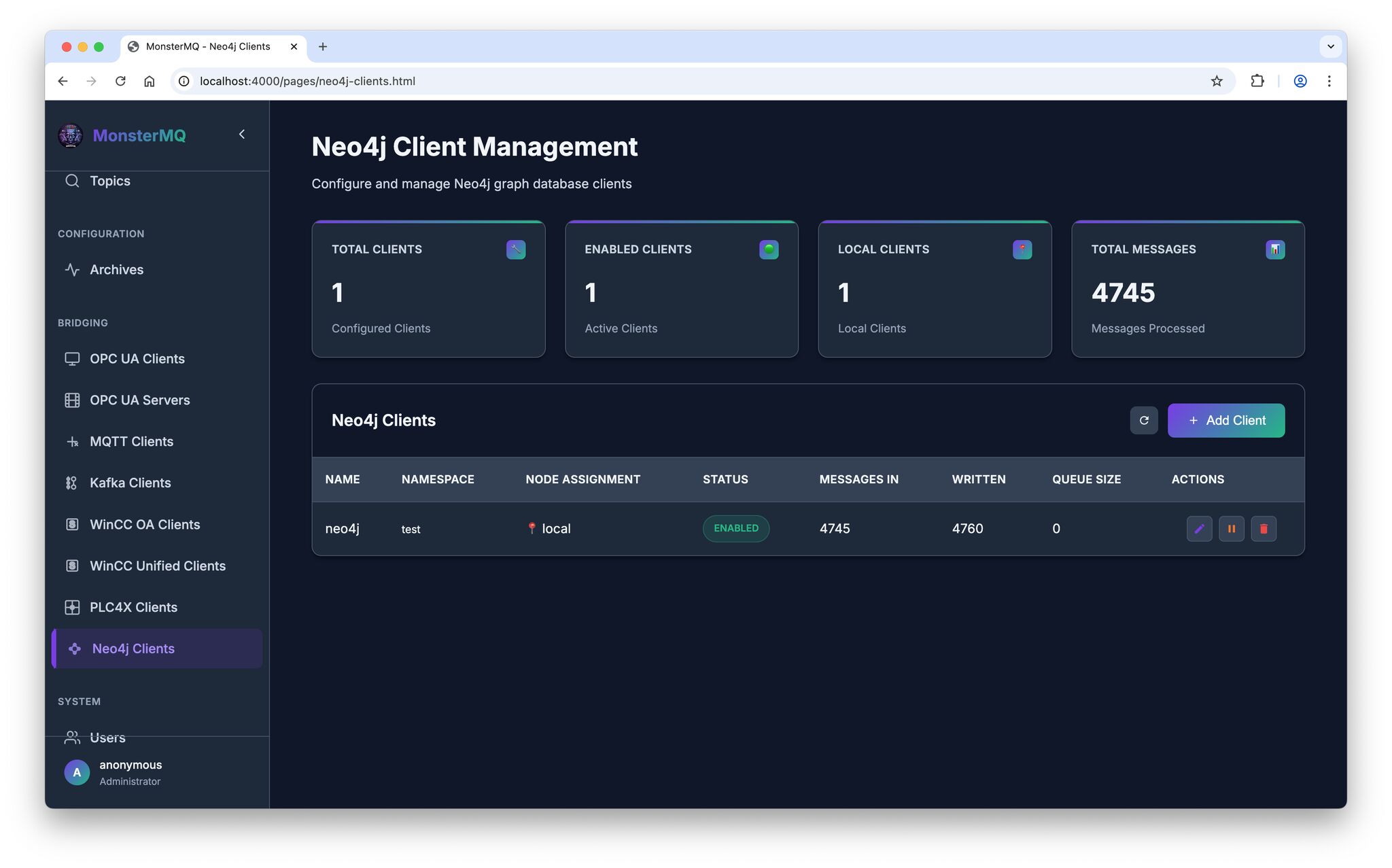
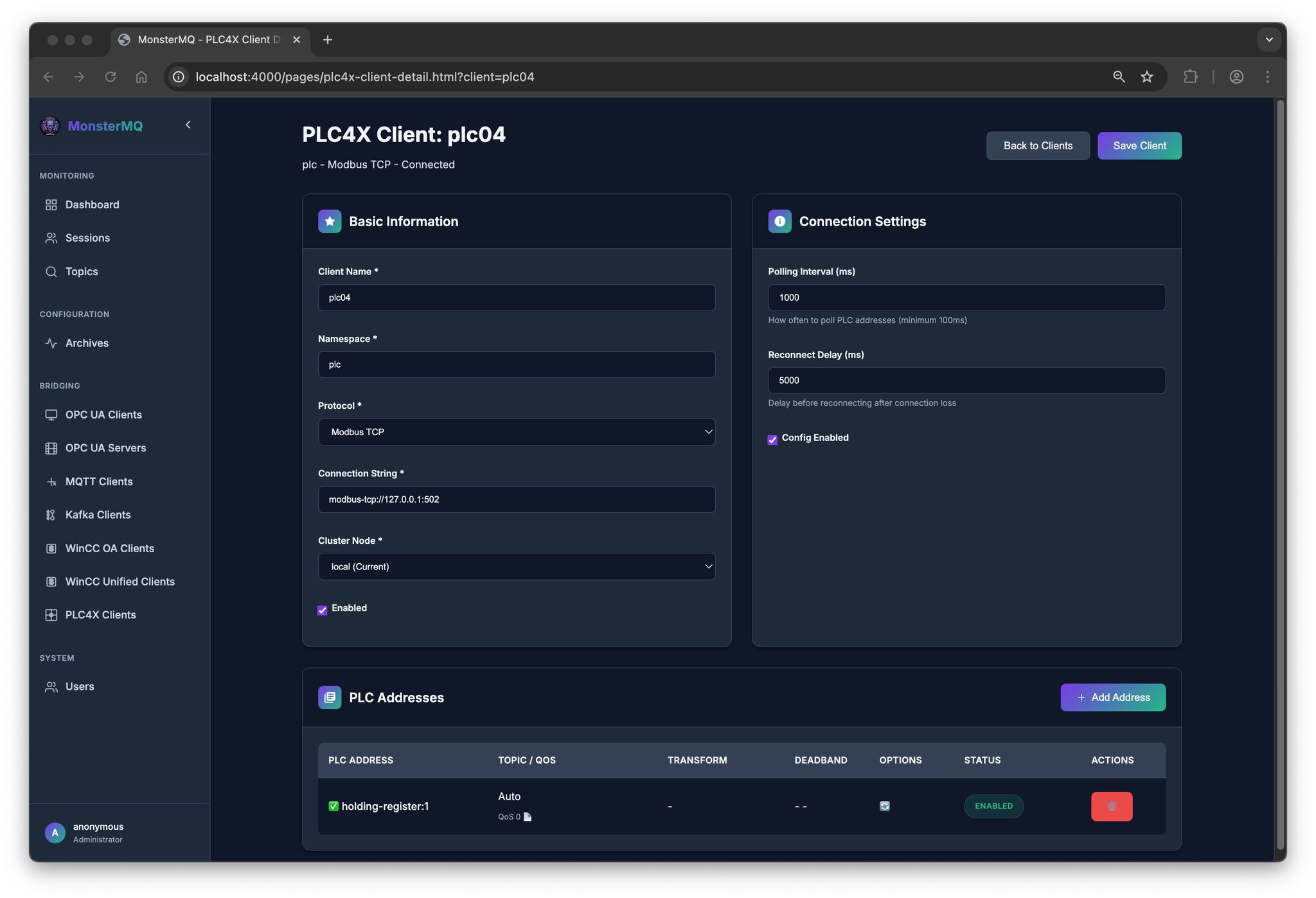
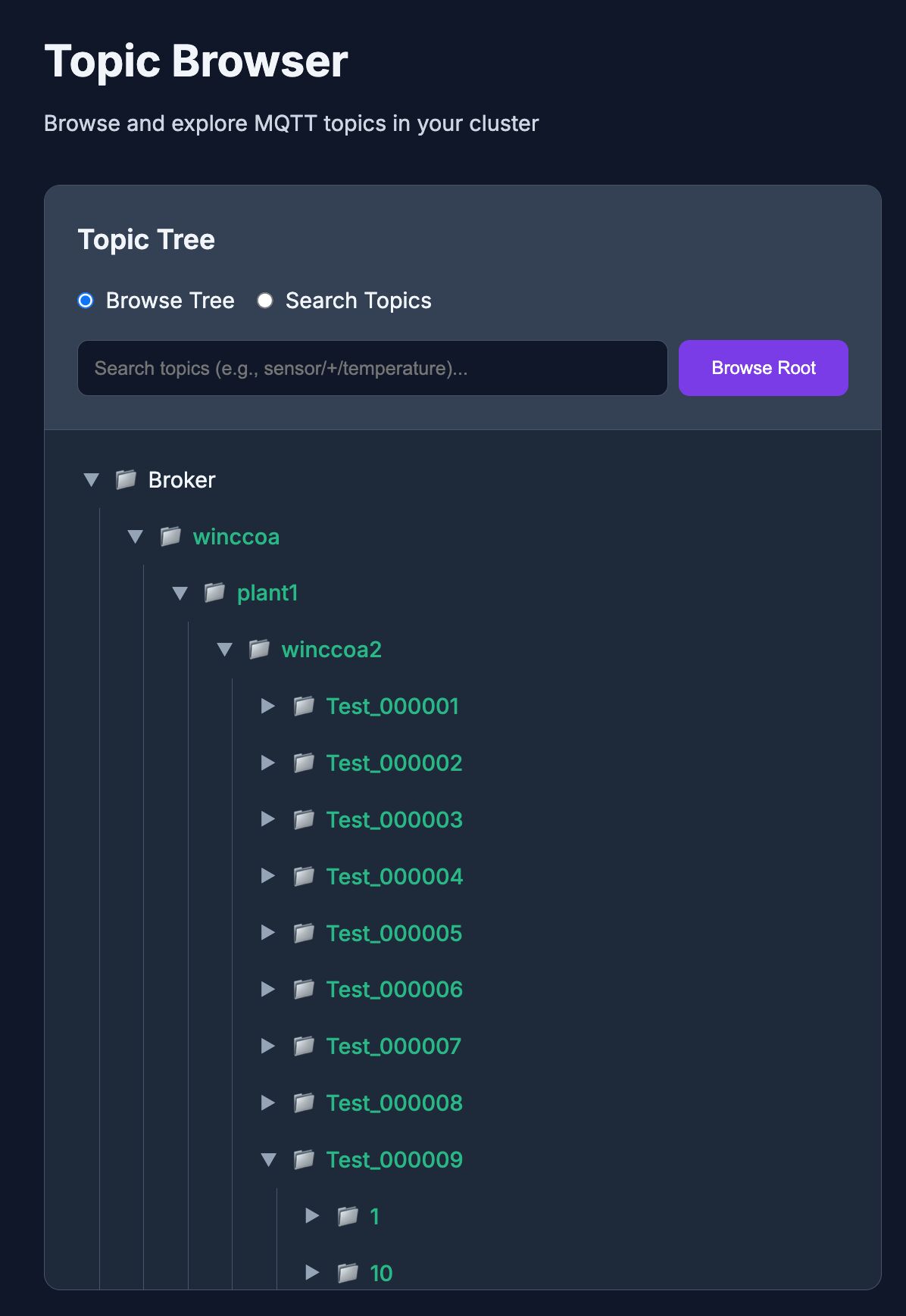
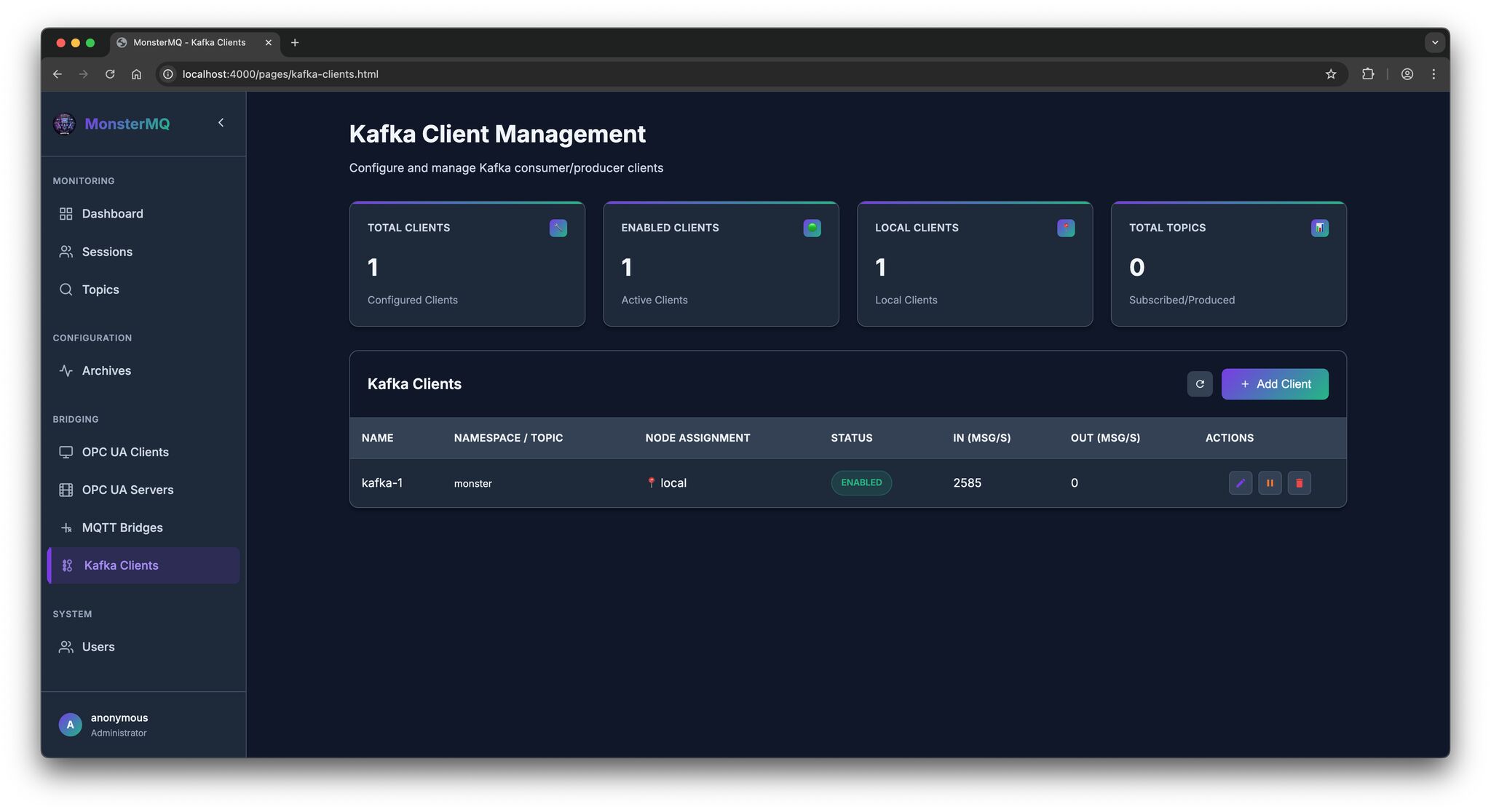
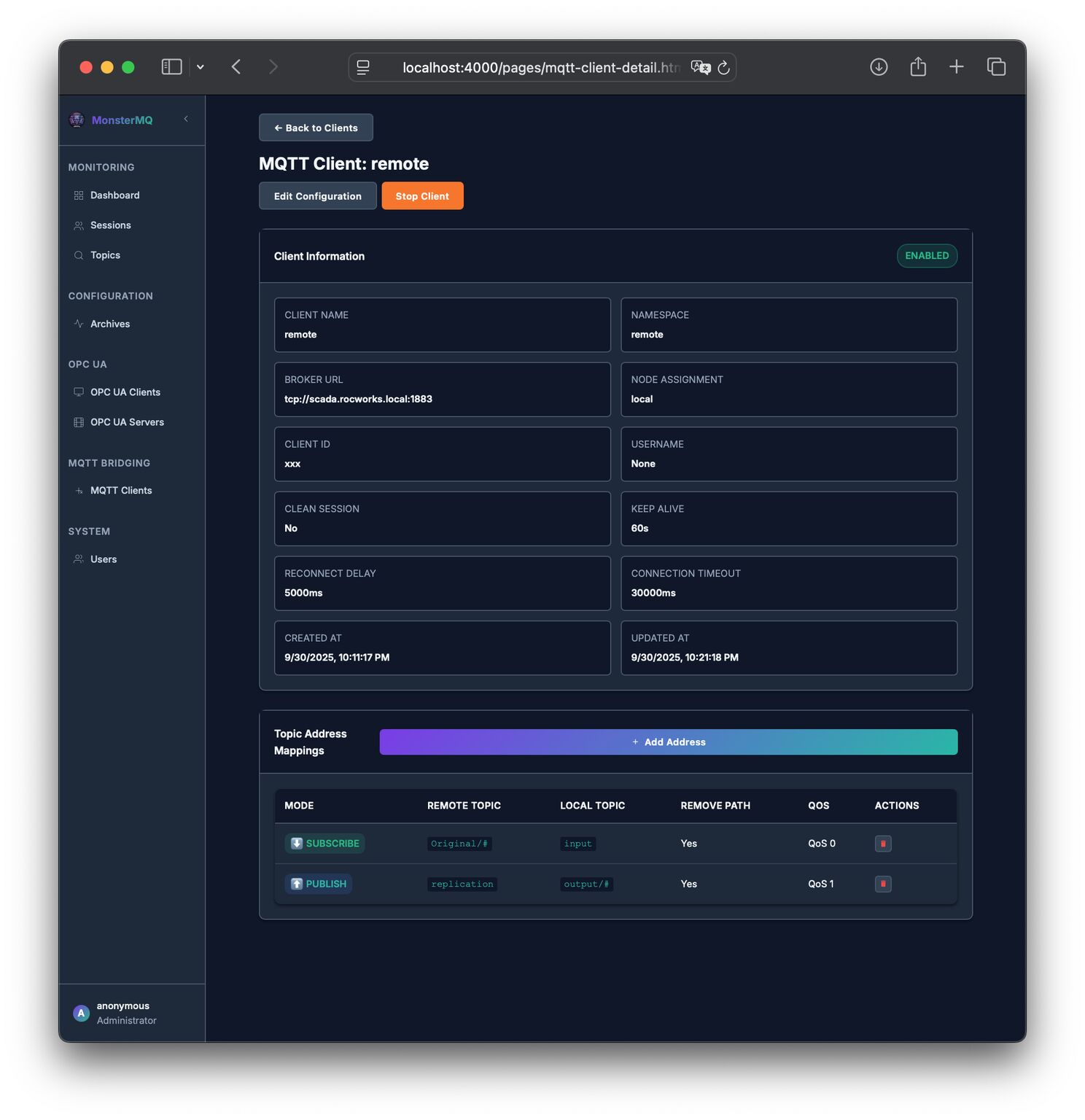
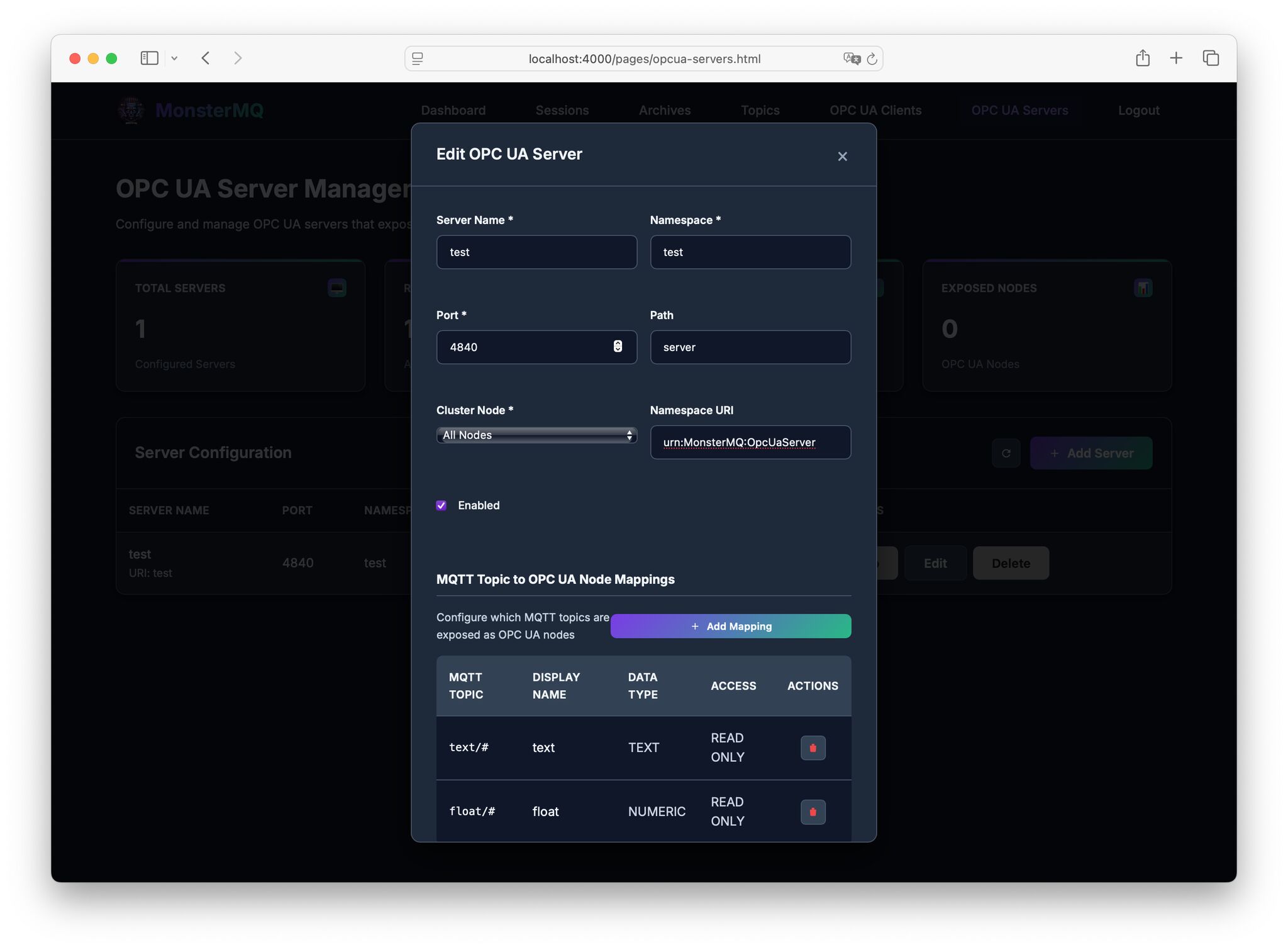
🚀 Now you can chat with your MQTT data. 💥 Still early stages though – lots of room for improvement and more tools to add to the MCP server.
🏷️ Add Metadata to topics: you can publish a retained subtopic containing metadata to your existing topics. This helps the LLM query that description and better understand the data. It is optional, but recommended.
Example topic: PV/Power/WattAct/<config>, it must contain a JSON object with this fields: { “Unit”: “W”, “Description”: “Current active power output of the photovoltaic system” }
🧠 Memory Included. MonsterMQ can store the last values in memory or in a PostgreSQL table. You can also historize your data in Postgres, so the LLM has access to historical data as well.
🤖 Wanna Try It? Publish your data to test.monstermq.com. Add a <config> retained topic to your topics, and then you can use the MCP Server test.monstermq.com/mcp, for example in Claude-Desktop.
See what Claud did by asking “please find some power meters of differnt rooms and plot the last 5 minutes of the rooms power consumption.”
🚀 MCP Server for WinCC Unified – Powered by GraphQL and GenAI!
Just gave myself a little nightly challenge: I implemented an MCP Server for WinCC Unified, based on its GraphQL Server.
https://github.com/vogler75/winccua-mcp-server
Thanks to the GraphQL server’s built-in documentation and its clearly defined data structures, it was surprisingly straightforward to generate most of the MCP server code — with the help from Gemini! 🙌
Super excited about how well this combination works — the power of Unified, GraphQL, and GenAI all together! 💡
The prompt for the example in the picture was: “logon with username1 and password1 and then fetch the values of the Meter Input logging tag of the last 10 minutes and plot it.”
Next time I asked Claude to forecast my solar PV production to help me decide whether it’s a good time to run my dryer.
It’s fascinating how you can simply ask questions like “Should I run my dryer now?” and get intelligent – really? 🧐 – responses based on actual and historical production data.
What I like about that:
✅ Natural conversation with my process data
✅ Real-time insights from WinCC Unified data
✅ AI-powered recommendations …
👀 But can I trust it? No, you do not know how it came to this forecast…
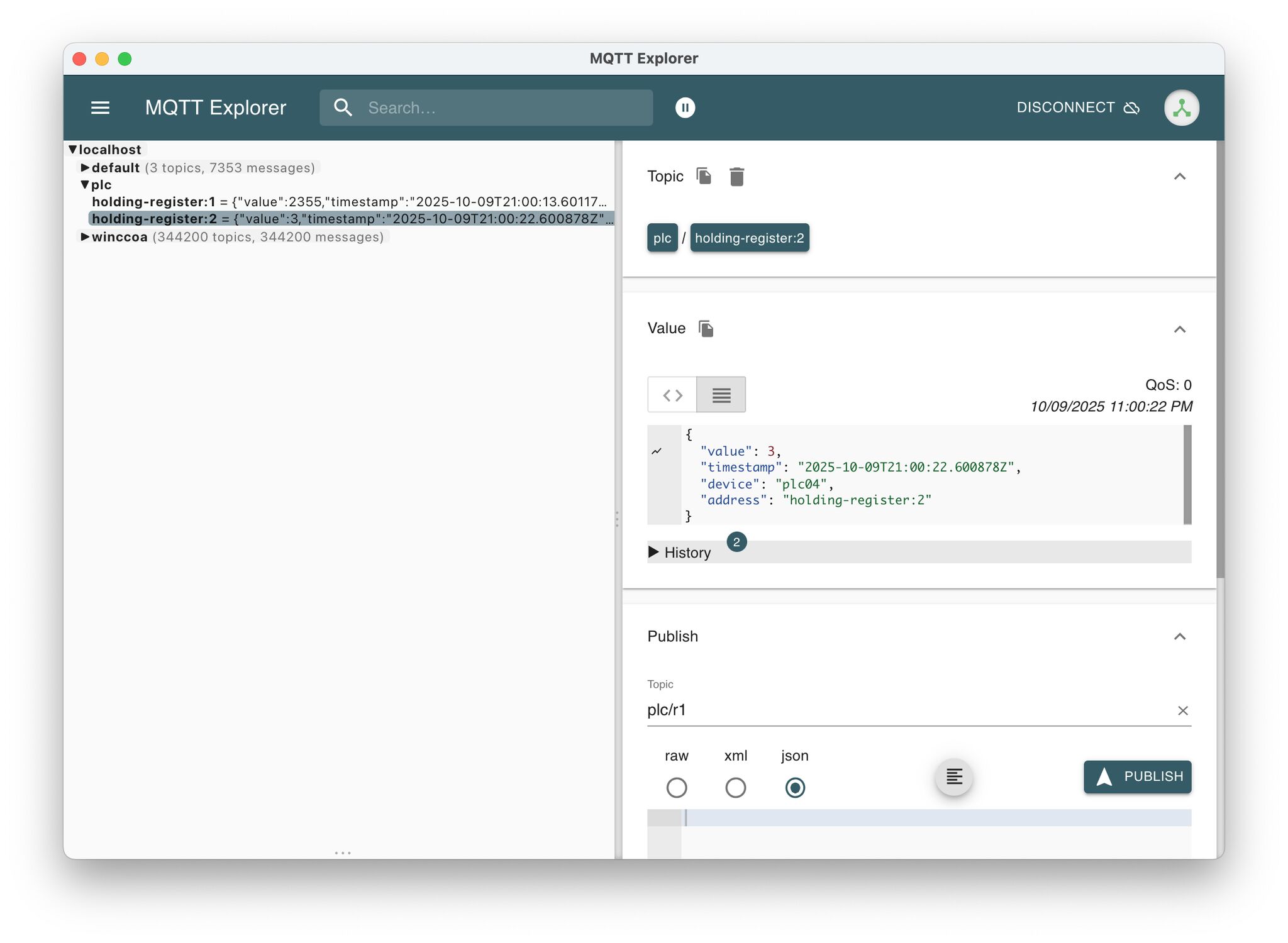
Retained messages are the devil of MQTT 😈 😱
MQTT brokers handle retained messages differently – and that can have serious implications…
🔸 HiveMQ Community Edition doesn’t support to persist retained messages to disk. After a restart, they’re gone – so it’s better to go with the Enterprise Edition. Unfortunately I do not have access to the Enterprise version to perform further tests.
🔸 Mosquitto writes retained messages to disk periodically(!), default is 30 minutes! And during writing from memory to disk, publishing values pauses, it seems the broker gets frozen during writing to disk. Writing 1M retained messages to disk takes time… plus, I got it to crash at about 4460000 retained values (reproducible), and after the crash, it didn’t start anymore – until I removed the database file and lost all retained messages.
🔸 EMQX handled the test with a max of 2000 value changes per second. It was already using about 250% CPU of four cores, and I occasionally received “Mnesia is overloaded” warnings. I don’t know whether messages are being queued or dropped at that point. Writing to disk didn’t seem fast. Additionally, a broker startup after storing 1 million retained messages took a while (about 30 seconds), likely because all values are being loaded into memory.
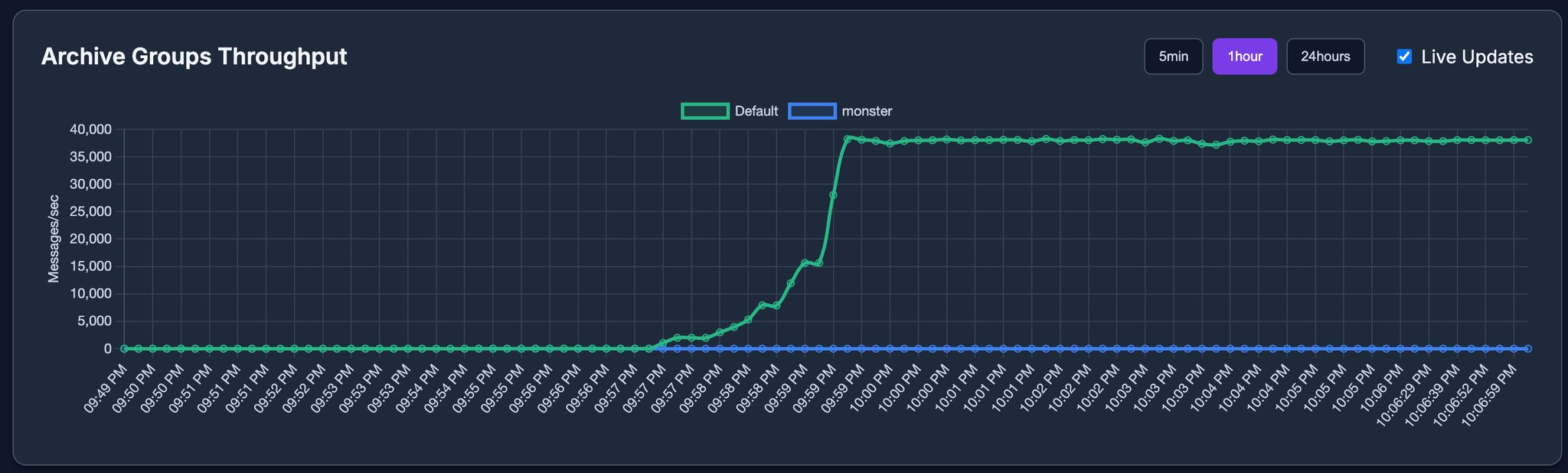
🔸 BifroMQ handled the test at around 8000 v/s, using only about 20% of four CPU cores. I noticed that throughput decreases as the number of published topics increases. Interestingly, it limits wildcard subscriptions to just 10 retained messages – to protect the system, but that number feels a bit low. I couldn’t find a configuration setting to change it.
🔸 MonsterMQ handled the test with about 7000 v/s with 18% for the Monster plus 70% for the PostgreSQL database of four CPU cores. MonsterMQ stores retained messages in a PostgreSQL table (written in bulk). If you have a high volume of retained messages, it can lead to full queues – especially if your PostgreSQL instance can’t keep up. In that case, the broker will not persist all values.
🧨 Be careful when using retained messages!
👉 Understand and test your broker’s behavior before relying on them for data durability.
Just to note: These results are based on my own tests and specific use cases, and were performed on modest hardware. I was publishing retained messages to hierarchically structured topics (e.g., root/0/0/0/0/0/0/0/0/0/0), using numbers from 0 to 9, without any subscribers.
Capturing WinCC Unified Traces to Elasticsearch
In industrial automation, logging and monitoring are crucial for maintaining system health and troubleshooting issues. Siemens WinCC Unified provides built-in tracing capabilities that. In this post I will show how to capture that traces to Elasticsearch to allow seamless log collection, storage, and visualization.
Step 1: Capturing WinCC Unified Traces
WinCC Unified provides a trace tool that simplifies the process of collecting traces. The tool allows logs to be written to files, which can then be read by Logstash (a tool to process log files).
In that example we will write the log files to C:\Tools\logstash-siemens\logs directory.
"C:\Program Files\Siemens\Automation\WinCCUnified\bin\RTILtraceTool.exe" -mode logger -path C:\Tools\logstash-siemens\logs
Step 2: Collecting Logs with Logstash
Create a Logstash configuration file (e.g., ) with the following setup:C:\Tools\logstash-siemens\logstash.conf
input {
file {
path => "C:/Tools/logstash-siemens/logs/*.log" # Use forward slashes for Windows paths
start_position => "beginning"
sincedb_path => "C:/Tools/logstash-siemens/sincedb" # Save the reading state
codec => plain {
charset => "UTF-8"
}
}
}
filter {
# Drop empty lines
if [message] =~ /^\s*$/ {
drop { }
}
# Add a custom field to identify the log source
mutate {
add_field => { "Source" => "WinCC Unified" }
}
# Use dissect to parse the log format correctly
dissect {
mapping => {
"message" => "%{#}|%{Host}|%{System}|%{Application}|%{Subsystem}|%{Module}|%{Severity}|%{Flags}|%{Timestamp}|%{Process/Thread}|%{Message}"
}
remove_field => ["message"]
}
# Remove leading and trailing spaces
mutate {
strip => ["#", "Host", "System", "Application", "Subsystem", "Module", "Severity", "Flags", "Timestamp", "Process/Thread"]
}
# Convert timestamp to @Timestamp (ensure it matches your log format)
date {
match => ["Timestamp", "yyyy.MM.dd HH:mm:ss.SSS"]
target => "@timestamp"
timezone => "UTC"
locale => "en" # Add locale to avoid parsing issues due to different formats or locales
}
}
output {
# stdout {
# codec => json_lines
# }
# Elasticsearch output (uncomment to enable)
elasticsearch {
hosts => ["http://linux0:9200"] # Change it to your Elasticsearch host
index => "wincc-traces-%{+YYYY.MM}"
# user => "elastic"
# password => "elastic"
}
}
Start Logstash to collect log files. First, download Logstash (https://www.elastic.co/downloads/logstash) and extract it to C:\Tools.
Then, run the following command to start Logstash using the specified configuration file:
C:\Tools\logstash-8.17.3\bin\logstash.bat -f C:\Tools\logstash-siemens\logstash.conf
Forwarding Traces from WinCC Unified Panels
For WinCC Unified Panels, trace forwarding can be enabled, allowing traces to be captured with the WinCC Unified trace tool on a PC. The traces will then be also be written to files on the same PC (by the tool you started at Step 1).
“C:\Program Files\Siemens\Automation\WinCCUnified\bin\RTILtraceTool.exe” -mode receiver -host
Step 4: Visualizing Logs in Kibana
Once logs are stored in Elasticsearch, Kibana provides a powerful interface to explore and analyze them.
- Open Kibana and navigate to Stack Management > Index Patterns.
- Create a new index pattern matching
wincc-traces-*. - Use Discover to explore logs and apply filters.
- Create dashboards and visualizations to monitor system health and performance.
WinCC Open Architecture Is Free to Try!
🧐 Lot of people think that WinCC software is not easy to access and try out – but that‘s not true: WinCC Open Architecture can be downloaded for free!
👉 All you need to do is register with your email, and you’ll get access to the software at no cost. You can explore and learn it without limitations. It runs for about 30 minutes before restarting – not ideal for production use, but absolutely perfect for learning, experimenting, or building a proof of concept for potential customers.
💪 For those unfamiliar with WinCC Open Architecture: it’s not only a full-fledged SCADA system – it’s also an IT/OT platform. True to its name, ‘Open Architecture,’ you can literally connect anything to it and extract everything from it in an open and flexible manner.
🖐️ It runs on devices as small as a Raspberry Pi, yet it can scale up to a distributed system, forming a unified cluster and providing a comprehensive view of all your business operations – whether it’s at the New York Underground or the largest machine humans have ever built: CERN.
Give it a try? www.winccoa.com
MQTT Bandwidth Efficiency: The Role of Topic Alias in MQTT 5 and Why I Only Got It Working with EMQX?
Recently, I conducted a test to analyze the bandwidth usage of MQTT, and one feature stood out as particularly impactful: the Topic Alias feature in MQTT 5. This feature can significantly reduce the overhead associated with long topic names, which is especially relevant in UNS (Unified Namespace) implementations using ISA-95-style topics, where topic names tend to be lengthy and sometimes consume more bytes than the payload itself.
💵 It can make an impact if you are being charged based on the amount of data transferred (cloud).
🚨 The Importance of Topic Alias
The Topic Alias feature allows a client to map a topic name to a shorter alias, reducing the amount of data transmitted. This can drastically lower bandwidth usage when transmitting messages with long topic names.
Using Topic Alias during publishing is straightforward but requires the topic-to-alias mapping logic to be implemented in the client program (which is not difficult to do).
On the subscriber side, the implementation should ideally be seamless. In theory, a subscriber needs only to set the maximum allowed alias number during the connection phase. This should make the feature easy to adopt for receiving applications.
👉 During my tests, I discovered something surprising: EMQX was the only broker (of the ones I have tested) to support Topic Alias for subscriptions(!) out of the box. With others I was unable to enable this functionality.
👉 To note: most articles about Topic Alias focus primarily on its use during publishing, not on subscriptions. I was focused on subscriptions.
📊 MQTT vs. OPC UA: Bandwidth Usage – Unexpected Results!?
🤔 I often heared about claims that MQTT requires less bandwidth than OPC UA. In my own testing, I found the opposite to be true!
🧪 I took a tree of over 3,500 topics, changing every topic once a second and replicated the exact same structure in OPC UA. In MQTT I was using a simple JSON payload of TimeMS plus the Value (just to note: OPC UA transmits more information than that). I also tried a version with just the plain value as a string. Then, I compared the network I/O stats of client programs subscribing to all those tags, both for OPC UA and MQTT, and confirmed that both clients are receiving all values.
👉 MQTT didn’t show a bandwidth advantage – in fact, it used four to six times the bandwidth of OPC UA in this setup! See the results. 200 KB/s vs 50 KB/s
And, to be honest, it makes sense: every single value change in MQTT includes the full topic name (enterprise/site/area/cell/…), creating a high overhead compared to OPC UA.

Bachelors Thesis from 2014: Optimizing the use of photovoltaic systems in single-family homes
Abstract
Within this thesis we implement a prototype of a smart home process control system for increasing the consumption of self-produced photovoltaic energy. To increase the consumption of self-produced energy, the energy is stored in a thermal storage by charging it automatically in case there is excess energy.
Due to the increasing popularity of small energy-producing plants (mainly photovoltaic systems) the allowances for energy fed into the public electricity grid decreases. The income from this kind of electricity is lower than the price of purchased electricity. By increasing the self-consumption of energy, the profitability of a photovoltaic system can be significantly improved.
Based on the findings of the thesis 1 „Eigenverbrauchsoptimierung vonPhotovoltaikstrom in Einfamilienhäusern“ (Vogler, 2014), the components to build such an integrated control system are implemented. The goal is to build an automated control system, that enforces power consumption when there is enough self-produced electricity available.
Due to long product cycles, companies in the process control-business are comparatively innovation averse and expensive. But with systems such as Arduino or Raspberry Pi, which allow an easy entry to the embedded programming and control technology, an intelligent control system for self-consumption of photovoltaic electricity by thermal storage can be implemented with low cost.
Our system consists of loosely coupled separated components. By the use of service interfaces, the components are highly distributed, which follows the current IT trend of ” IoT – Internet of Things “.
Thesis 1: Optimizing self-consumption of photovoltaic electricity in single-family homes
Thesis 2: Optimizing the use of photovoltaic systems in single-family homes
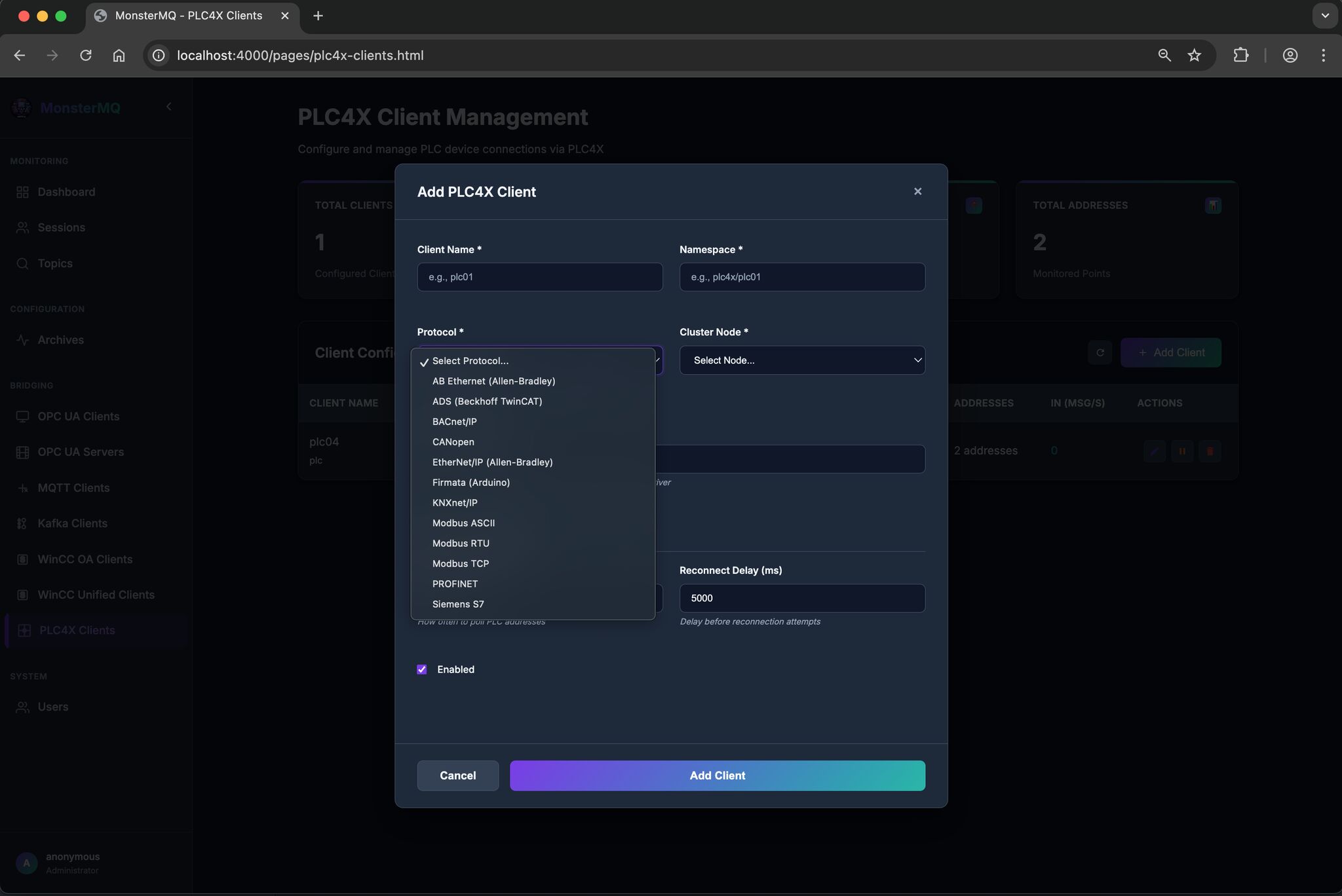
Replicate and Archive Data from a MQTT Broker to MonsterMQ

Here’s a straightforward example of how data replication can be achieved using the Frankenstein Automation-Gateway.com to transfer data from a remote broker to a local MonsterMQ Broker.
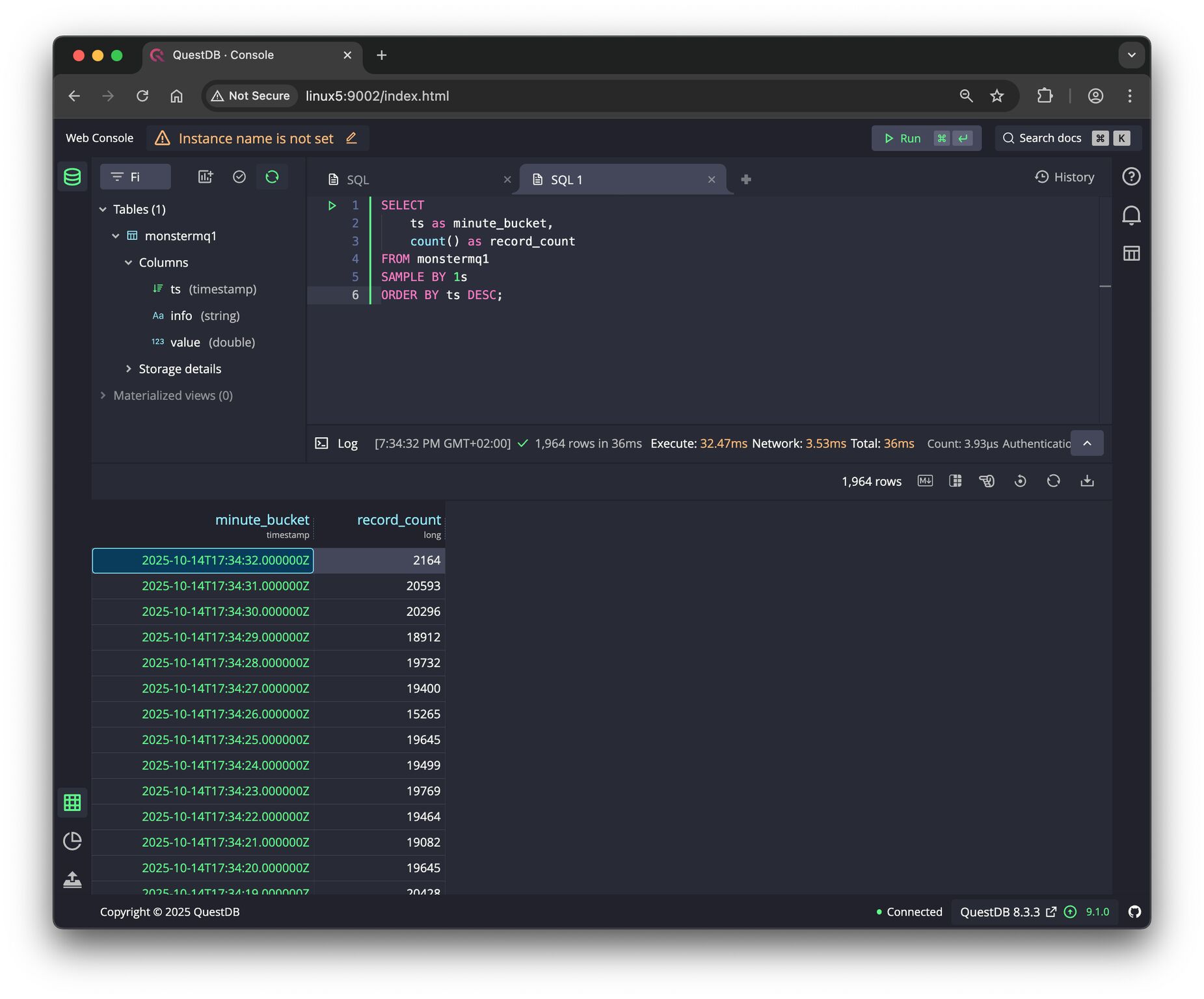
The local MonsterMQ Broker is configured so that data is stored in TimescaleDB to maintain a historical record. This process converts the current state of the UNS into archived historical data.
It will also create a Frankenstein OPC UA Server, allowing you to access the data from the MQTT broker. However, since we have it data-agnostic, all the data in the OPC UA Server will be available as a string data type.
Monster.yaml
Create a file monster.yaml with this content :
TCP: 1883
WS: 1884
SSL: false
MaxMessageSizeKb: 64
QueuedMessagesEnabled: false
SessionStoreType: POSTGRES
RetainedStoreType: POSTGRES
ArchiveGroups:
- Name: "source"
Enabled: true
TopicFilter: [ "source/#" ]
RetainedOnly: false
LastValType: NONE
ArchiveType: POSTGRES
Postgres:
Url: jdbc:postgresql://timescale:5432/postgres
User: system
Pass: manager
Frankenstein.yaml
Create a file frankenstein.yml with this content and adapt the Host of the soruce broker and the Topic paths which you want to replicate from the source to your local MonsterMQ Broker.
Servers:
OpcUa:
- Id: "opcsrv"
Port: 4840
EndpointAddresses:
- linux0 # Change this to your hostname!
Topics:
- Topic: mqtt/source/path/Enterprise/Dallas/#
Drivers:
Mqtt:
- Id: "source"
Enabled: true
LogLevel: INFO
Host: test.monstermq.com # Change this to your source MQTT Broker!
Port: 1883
Format: Raw
Loggers:
Mqtt:
- Id: "source"
Enabled: true
LogLevel: INFO
Host: 172.17.0.1
Port: 1883
Format: Raw
BulkMessages: false
LogLevel: INFO
Logging:
- Topic: mqtt/source/path/Enterprise/Dallas/#
Docker Compose
Create a docker-compose.yaml file with this content and then start it with docker-compose up -d
services:
timescale:
image: timescale/timescaledb:latest-pg16
container_name: timescale
restart: unless-stopped
ports:
- "5432:5432"
volumes:
- timescale_data:/var/lib/postgresql/data
environment:
POSTGRES_USER: system
POSTGRES_PASSWORD: manager
monstermq:
image: rocworks/monstermq:latest
container_name: monstermq
restart: unless-stopped
ports:
- 1883:1883
- 1884:1884
volumes:
- ./log:/app/log
- ./monster.yaml:/app/config.yaml
command: ["+cluster", "-log FINE"]
frankenstein:
image: rocworks/automation-gateway:1.37.1
container_name: frankenstein
restart: always
ports:
- 1885:1883
- 4840:4840
environment:
JAVA_OPTS: '-Xmx1024m'
volumes:
- ./frankenstein.yaml:/app/config.yaml
- ./security:/app/security
volumes:
timescale_data:
From OPC UA & MQTT/SparkplugB to Snowflake with Frankenstein Automation-Gateway
In that example we take SparkplugB messages from a MQTT Broker, decode it and write it to Snowflake. And we take some OPC UA nodes and write it also to the same table.
Create a database and a schema for your destination table.
CREATE OR REPLACE SCHEMA scada;
Create the table for the incoming data:
CREATE TABLE IF NOT EXISTS scada.gateway (
system character varying(1000) NOT NULL,
address character varying(1000) NOT NULL,
sourcetime timestamp with time zone NOT NULL,
servertime timestamp with time zone NOT NULL,
numericvalue float,
stringvalue text,
status character varying(30),
CONSTRAINT gateway_pk PRIMARY KEY (system, address, sourcetime)
);
Generate a private key:
> openssl genrsa 2048 | openssl pkcs8 -topk8 -v2 des3 -inform PEM -out snowflake.p8 -nocrypt
Generate a public key:
> openssl rsa -in snowflake.p8 -pubout -out snowflake.pub
Set the public key to your user:
> ALTER USER xxxxxx SET RSA_PUBLIC_KEY=’MIIBIjANBgkqh…’;
Replace MIIBIjANBgkqh… with your public key from the snowflake.pub file (without —–BEGIN PRIVATE KEY—– and without —–END PRIVATE KEY—–)
Details about creating keys can be found here
Prepare the Gateway
Add a Snowflake logger section to the gateways config.yml. In that example we take SparkplugB messages from a MQTT Broker, decode it and write it to Snowflake. And we take some OPC UA nodes and write it also to the same table.
Drivers:
OpcUa:
- Id: "test1"
Enabled: true
LogLevel: INFO
EndpointUrl: "opc.tcp://test.monstermq.com:4840/server"
UpdateEndpointUrl: true
SecurityPolicy: None
Mqtt:
- Id: "test2"
Enabled: true
LogLevel: INFO
Host: test.monstermq.com
Port: 1883
Format: SparkplugB
Loggers:
Snowflake:
- Id: "snowflake"
Enabled: true
LogLevel: INFO
PrivateKeyFile: "snowflake.p8"
Account: xx00000
Url: https://xx00000.eu-central-1.snowflakecomputing.com:443
User: xxxxxx
Role: accountadmin
Scheme: https
Port: 443
Database: SCADA
Schema: SCADA
Table: GATEWAY
Logging:
- Topic: opc/test1/path/Objects/Mqtt/#
- Topic: mqtt/test2/path/spBv1.0/vogler/DDATA/+/#
The Url you can find in the Snowflake web console by going to Admin/Accounts and then hover over the “Locator” column.

Start the Gateway
> git checkout snowflake
> cd automation-gateway/source/app
> ../gradlew run
Note: Using gradlew to start the gateway is not recommended for production. Instead, consider using a Docker image or the files from the build/distribution for a more robust setup..