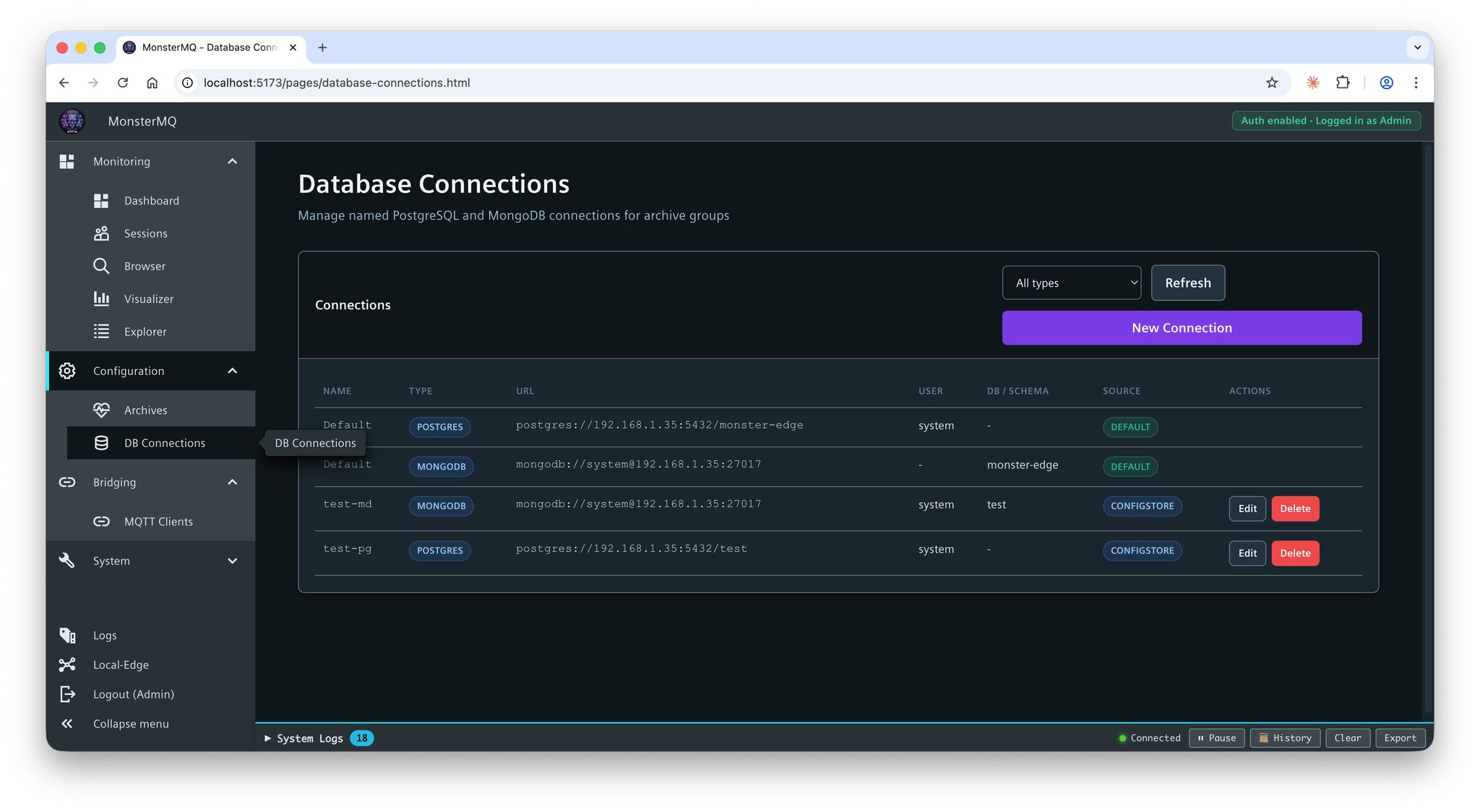
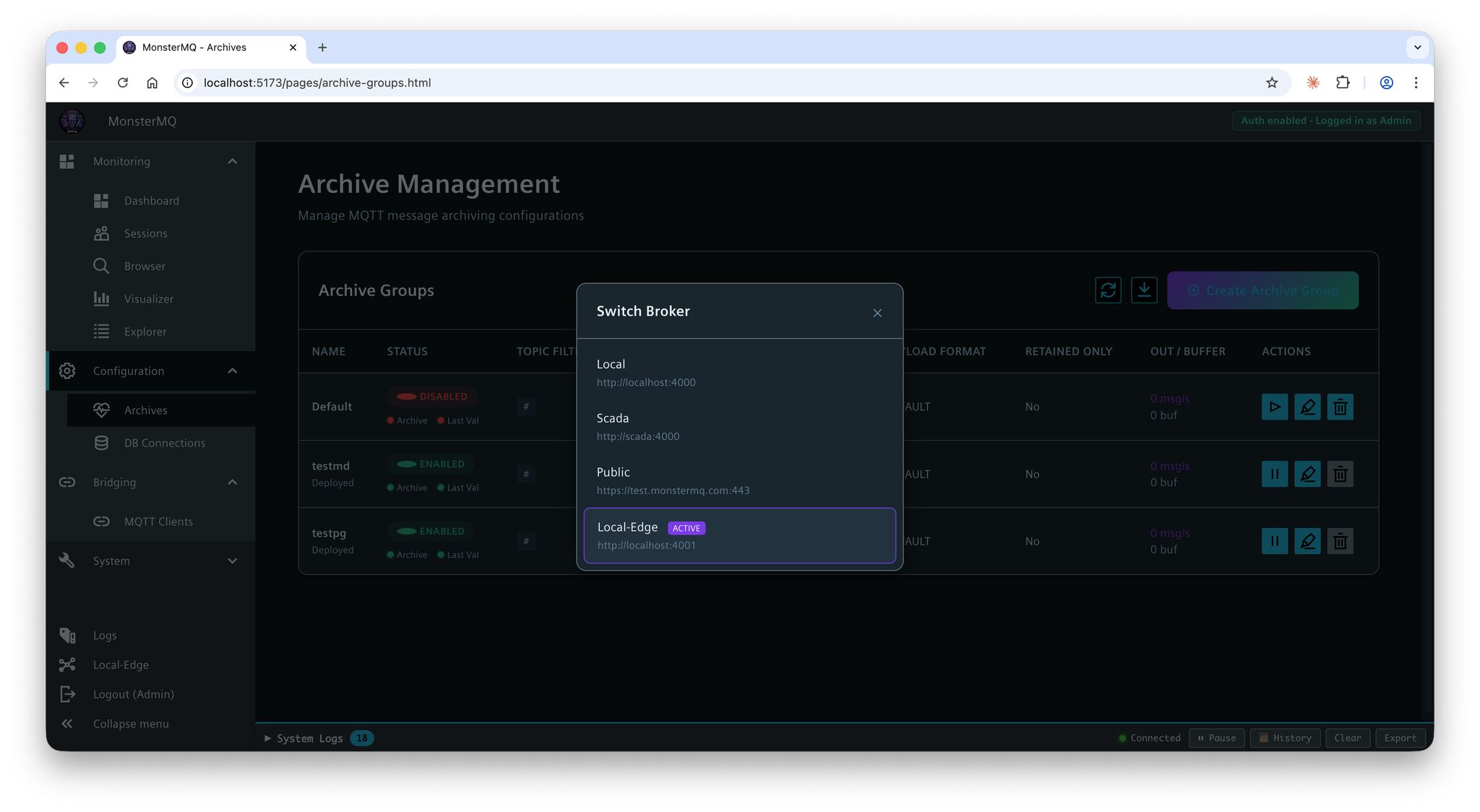
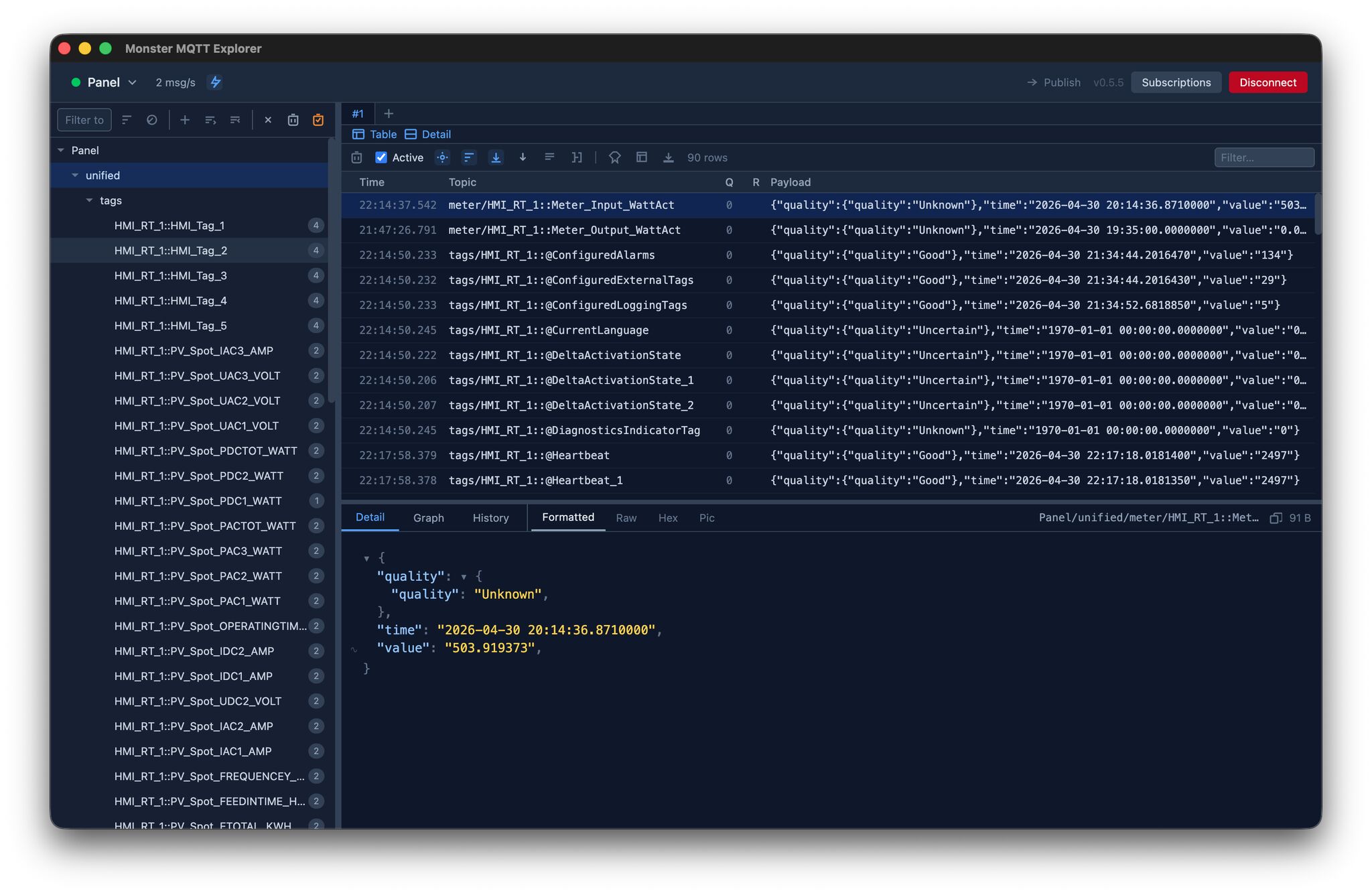
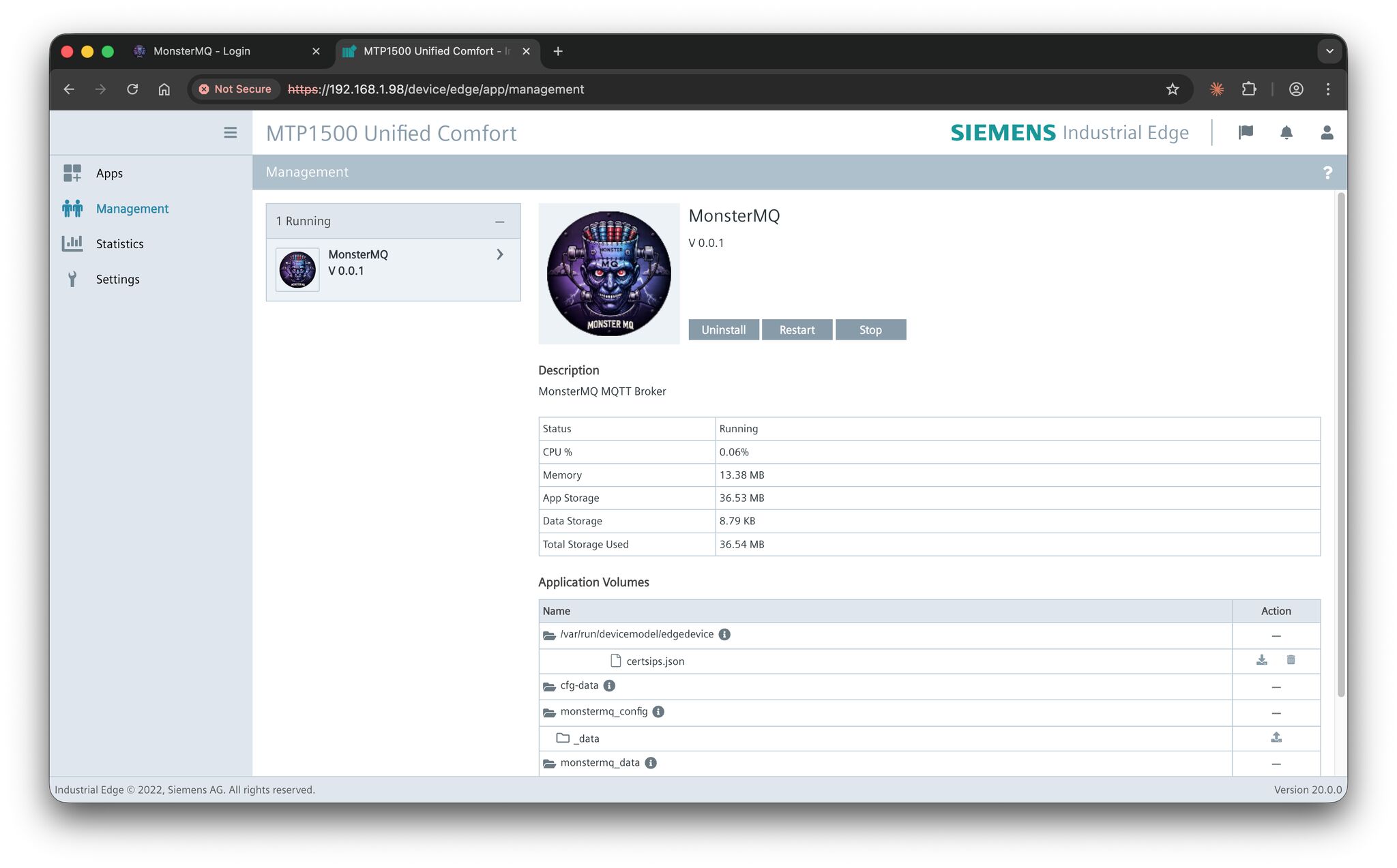
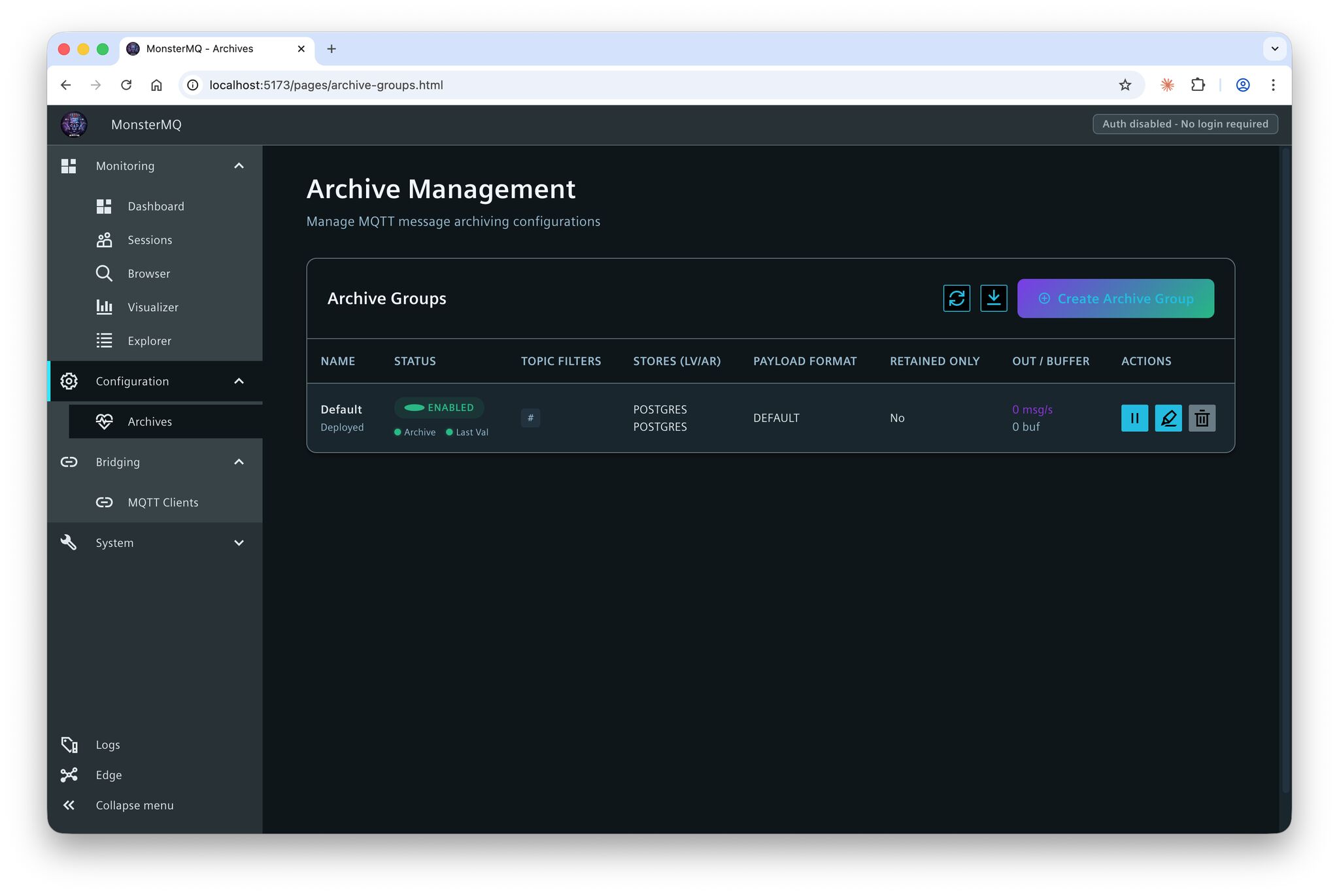
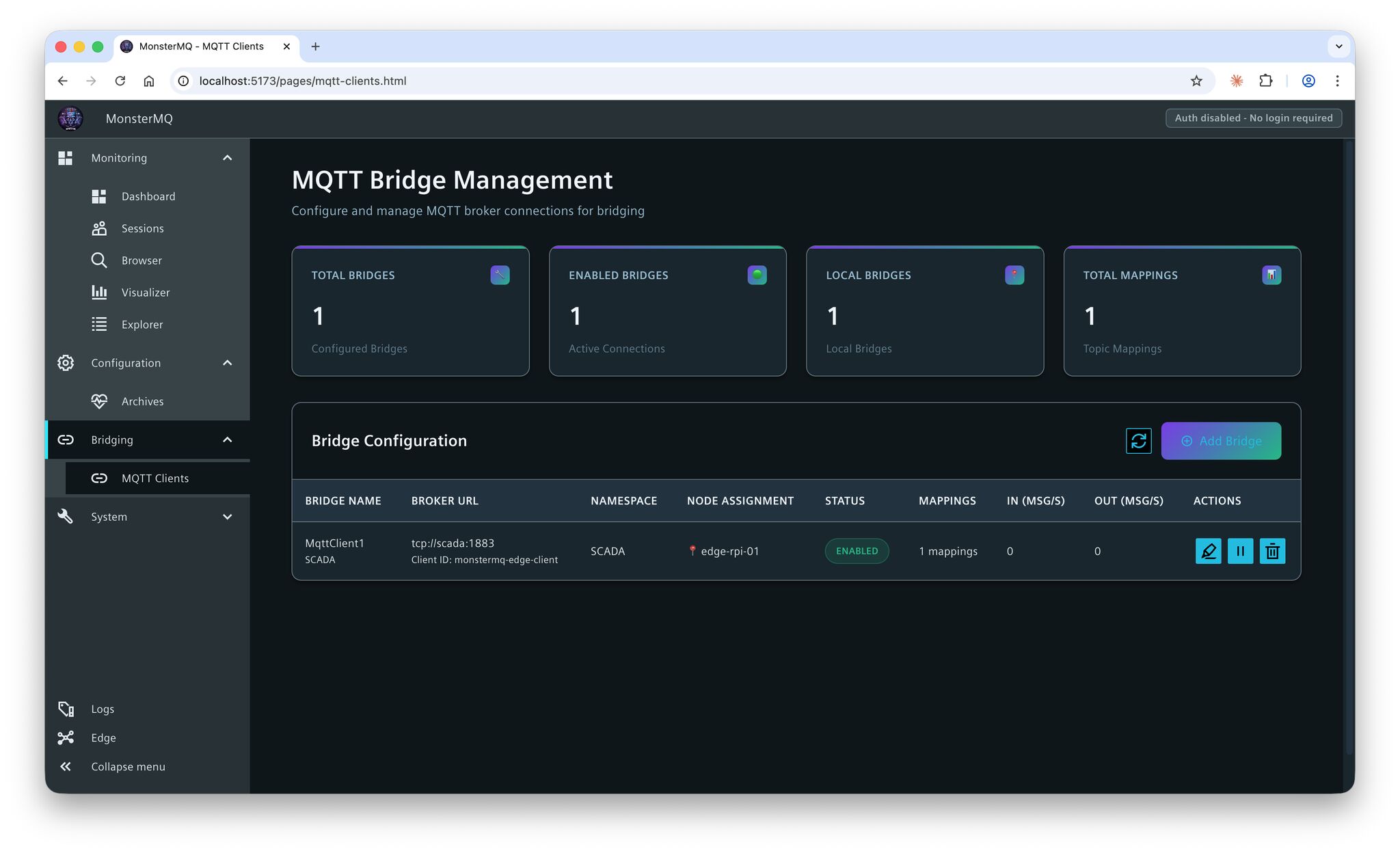
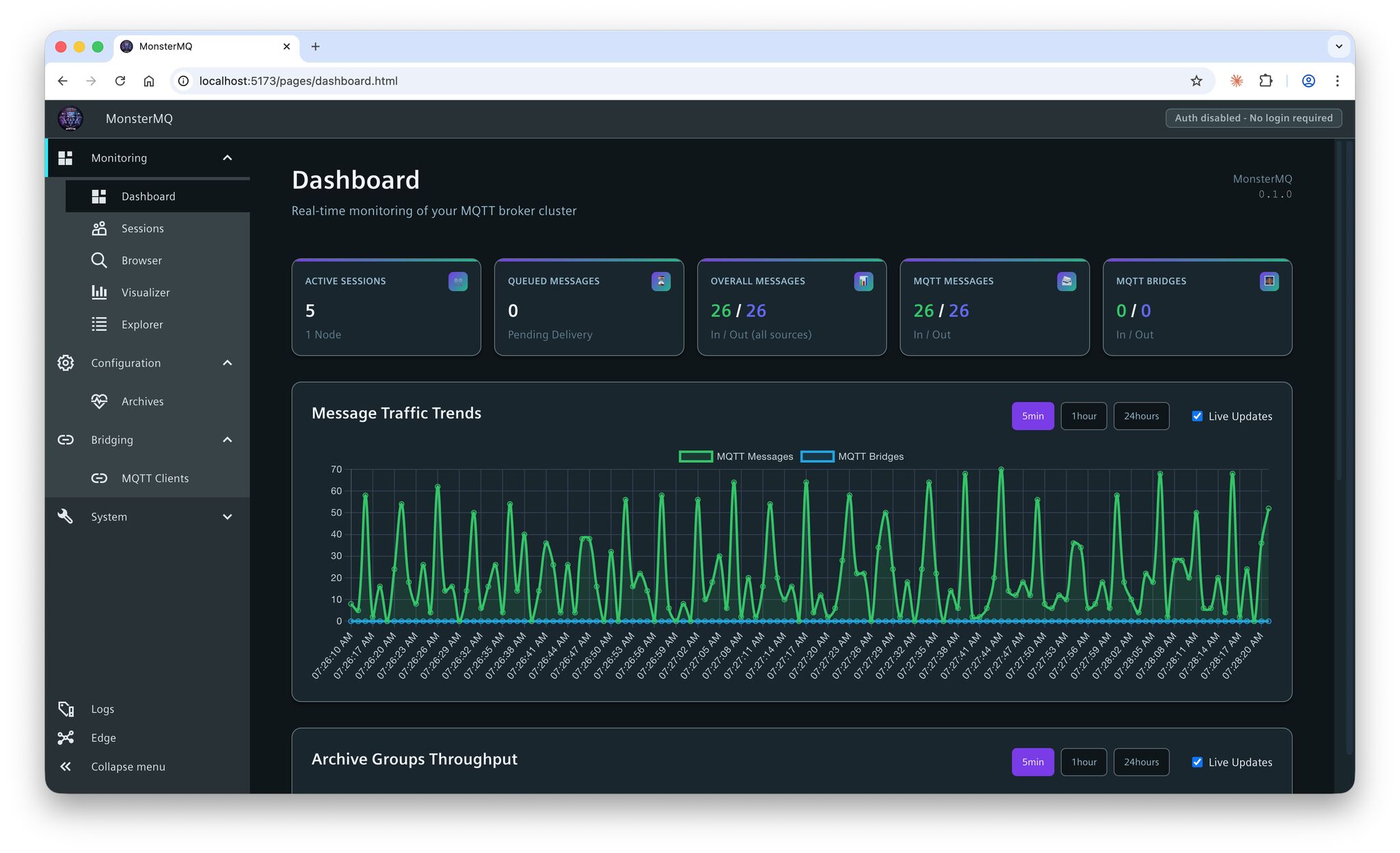
A i3x server integrated directly into MonsterMQ!
What’s happening under the hood:
👉 MQTT topics are stored in memory
👉 Historical values are persisted in MongoDB
Those features have been available in MonsterMQ for a long time…
The i3x interface just exposes all of that data via the i3x protocol!
💡 This means you get a full MQTT broker with structured, queryable data access via i3x – all in one place.
Category Archives: Allgemein
WhatsApp messages from WinCC Unified
Someone asked me if it’s possible to send WhatsApp messages from WinCC Unified 💬
Yes, and it’s simple! A small Python helper connects to the GraphQL server of WinCC Unified, subscribes to a tag to get the message text, and forwards it to WhatsApp via Twilio. That’s it. And for sure, the same can be done with WinCC Open Architecture.
Available here: https://github.com/vogler75/winccua-twilio
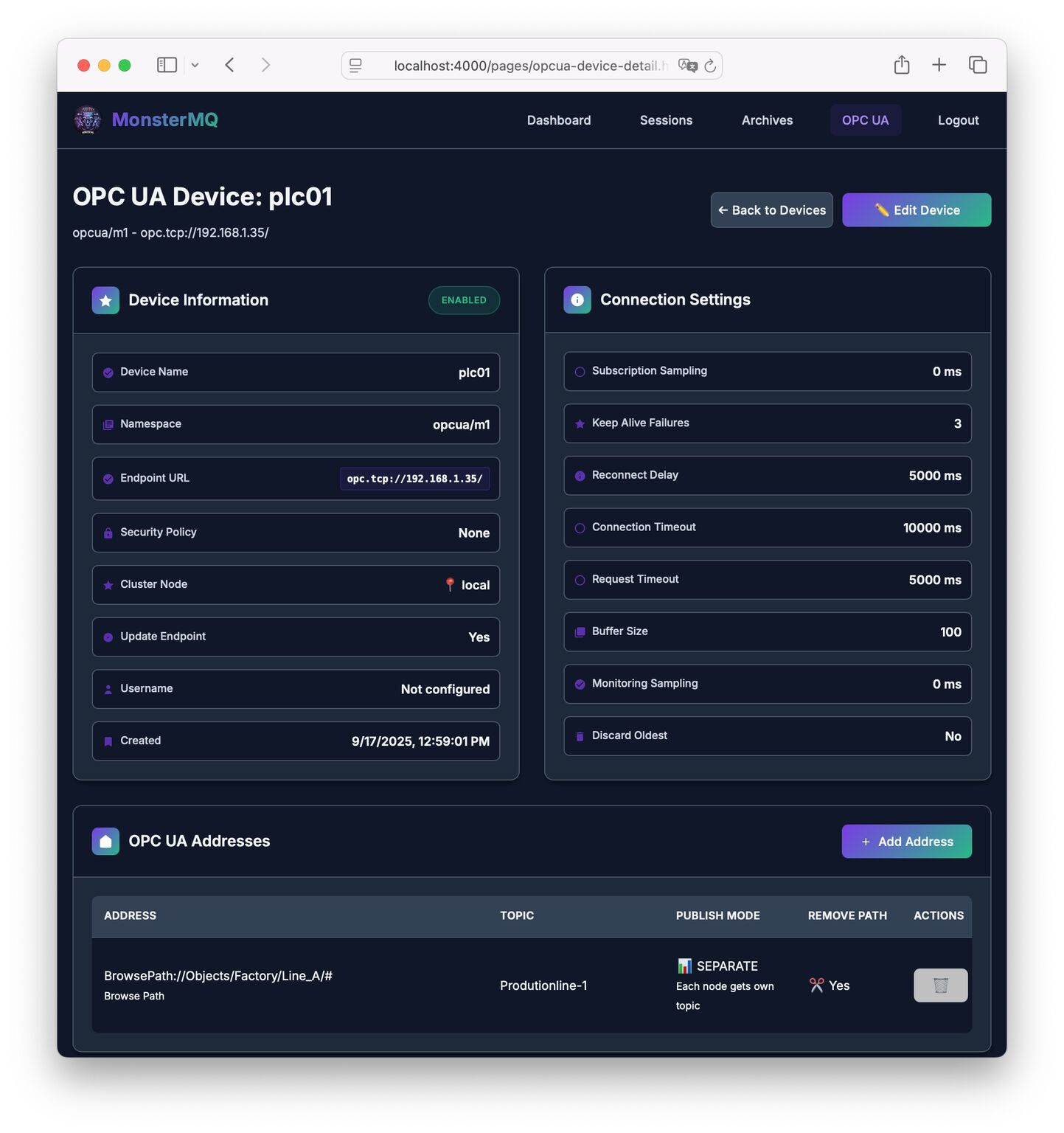
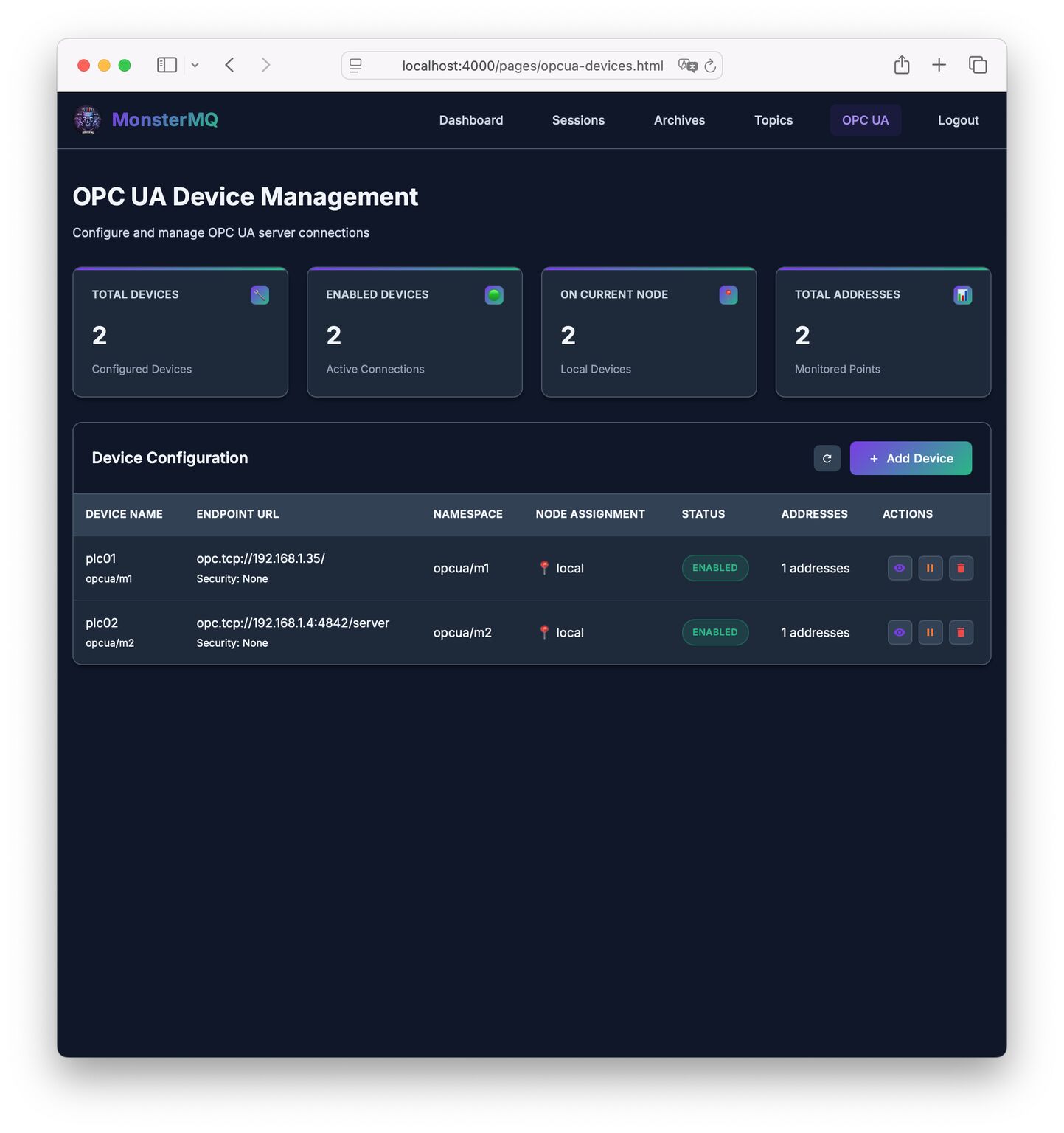
🚀 Nightly new Feature in MonsterMQ: OPC UA Server Connectivity!
With this integration, MonsterMQ can now connect directly to OPC UA Servers and make the data available on MQTT topics — bridging two key industrial protocols.
Plus we have integrated a topic tree browser, see pics!

I took a half day off work, to finish this.
🔗 https://monstermq.com – Open-Source 👍
👉 Star it on GitHub if you like it!


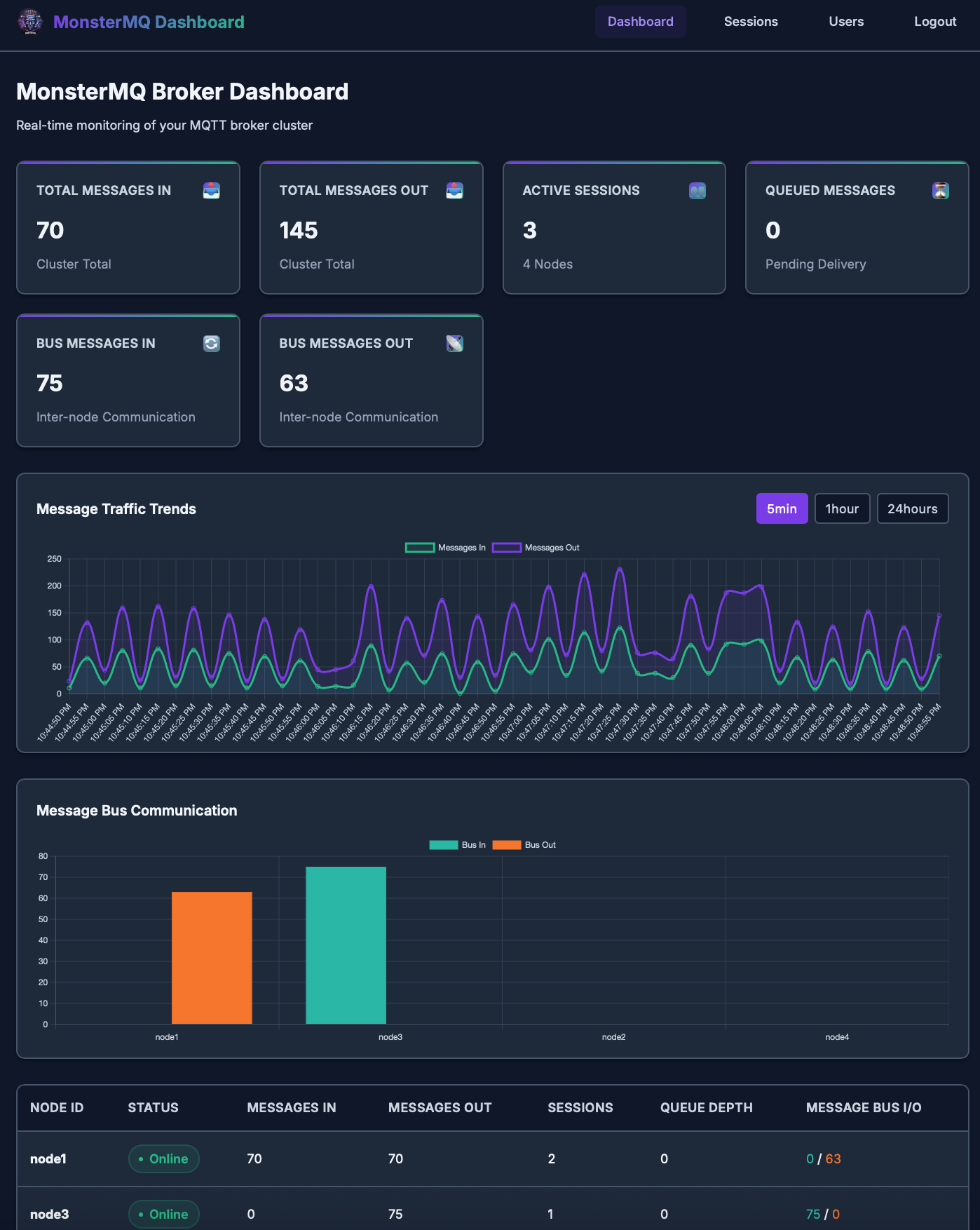
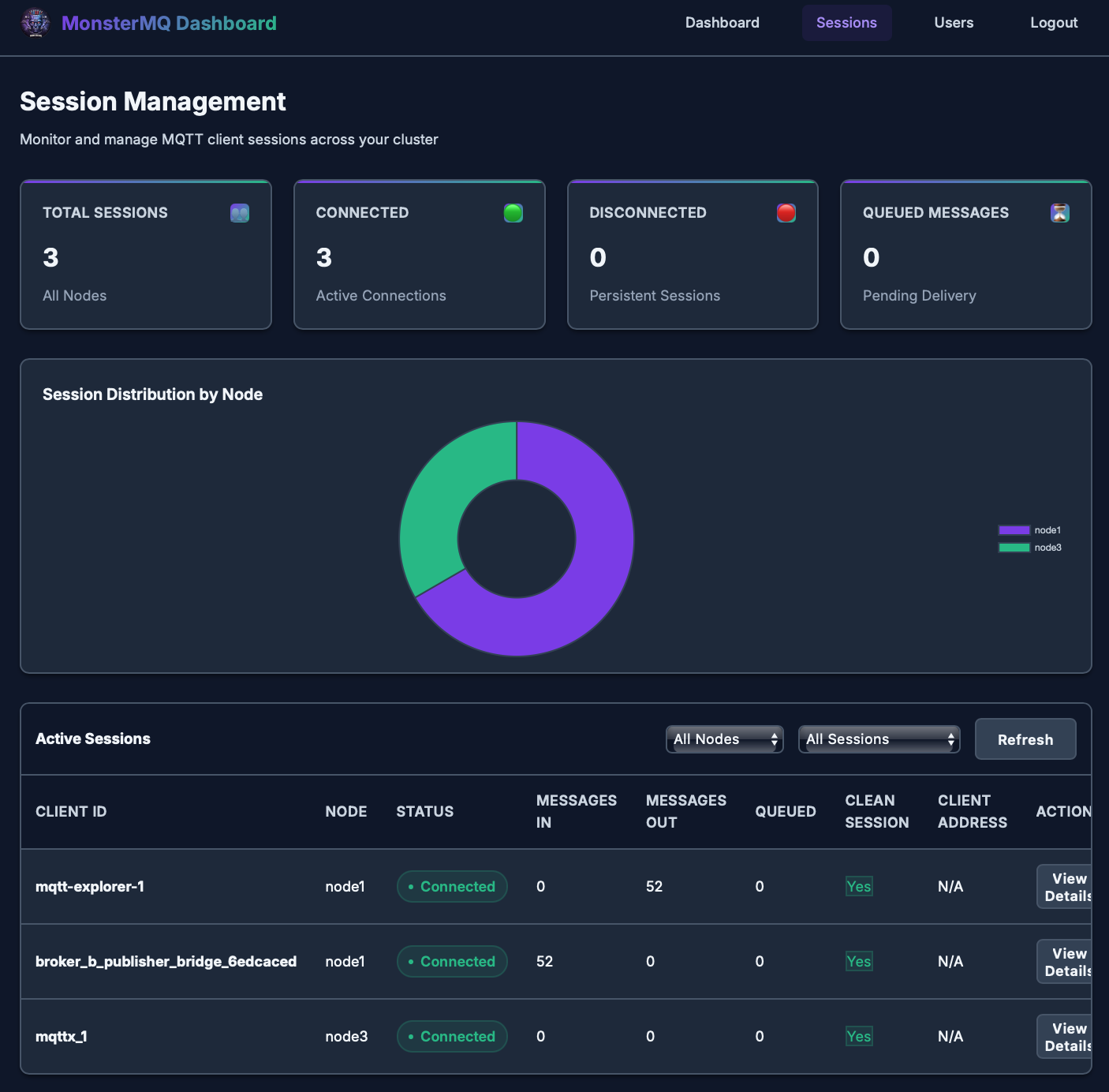
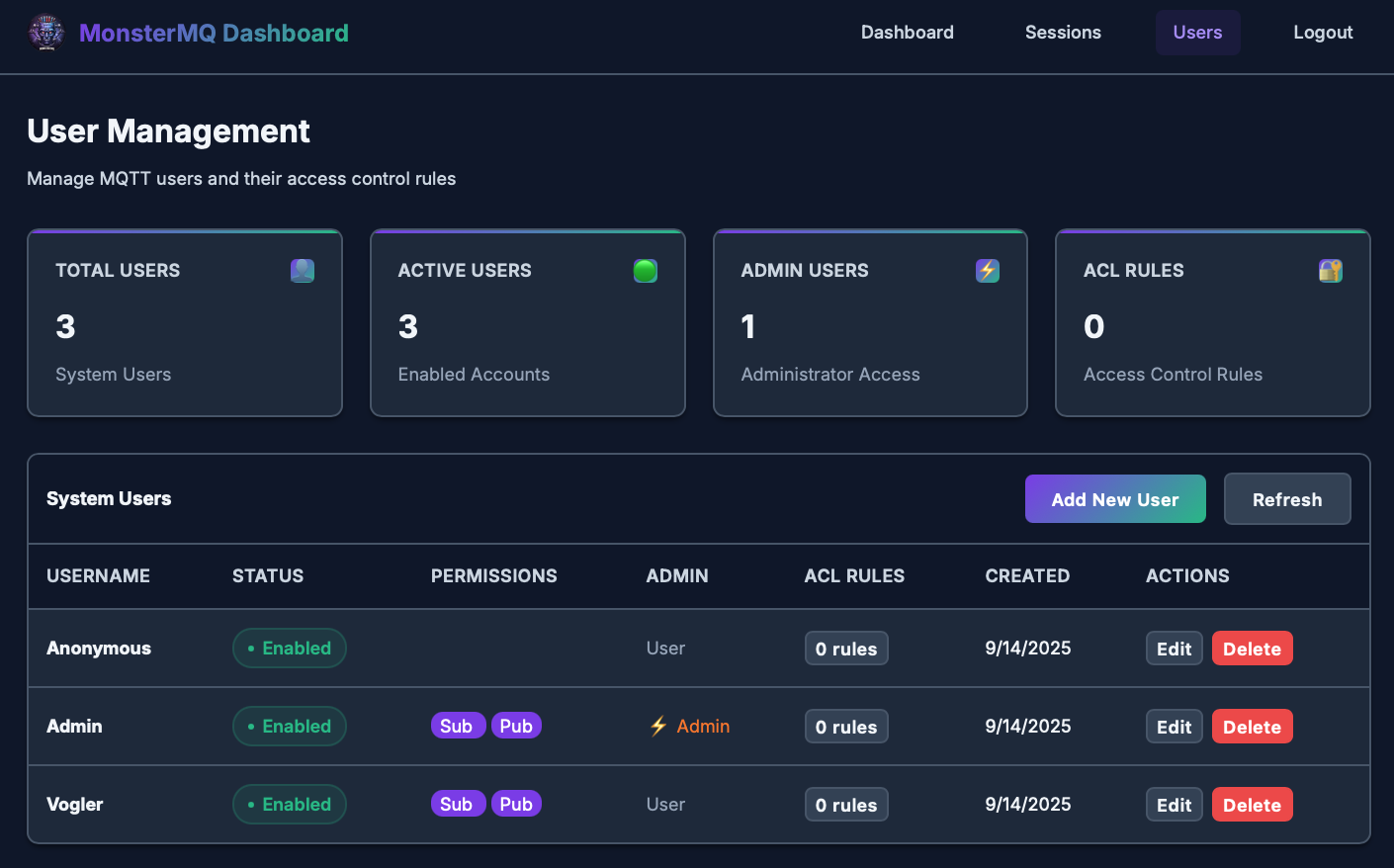
🧌 The Monster got a face: Dashboard for MonsterMQ
From the new dashboard pages, you can now:
👉 Monitor node & cluster activity
👉 Monitor connected sessions
👉 Manage users and ACLs
There is also a new homepage for MonsterMQ
👉 https://monstermq.com
The dashboard is powered by MonsterMQ Broker’s GraphQL API.


✨ Having a REST and GraphQL API on the WinCC Unified Comfort Panel — it’s possible!
I recently started using my panel at home and felt lost without having such API’s.
So I decided to change that:
✅ I built a lightweight REST and a GraphQL server for WinCC Unified.
✅ Implemented in Rust, they’re native, lightweight, single executables.
✅ Low memory and CPU footprint – thanks to Rust!
✅ With GraphQL, there is also support for tag & alarm subscriptions! 🔄
I always prefer using GraphQL — I find it tedious to constantly refer to separate REST documentation. But for some simple use cases, REST is perfectly fine.


Capturing WinCC Unified Traces to Elasticsearch
In industrial automation, logging and monitoring are crucial for maintaining system health and troubleshooting issues. Siemens WinCC Unified provides built-in tracing capabilities that. In this post I will show how to capture that traces to Elasticsearch to allow seamless log collection, storage, and visualization.
Step 1: Capturing WinCC Unified Traces
WinCC Unified provides a trace tool that simplifies the process of collecting traces. The tool allows logs to be written to files, which can then be read by Logstash (a tool to process log files).
In that example we will write the log files to C:\Tools\logstash-siemens\logs directory.
"C:\Program Files\Siemens\Automation\WinCCUnified\bin\RTILtraceTool.exe" -mode logger -path C:\Tools\logstash-siemens\logs
Step 2: Collecting Logs with Logstash
Create a Logstash configuration file (e.g., ) with the following setup:C:\Tools\logstash-siemens\logstash.conf
input {
file {
path => "C:/Tools/logstash-siemens/logs/*.log" # Use forward slashes for Windows paths
start_position => "beginning"
sincedb_path => "C:/Tools/logstash-siemens/sincedb" # Save the reading state
codec => plain {
charset => "UTF-8"
}
}
}
filter {
# Drop empty lines
if [message] =~ /^\s*$/ {
drop { }
}
# Add a custom field to identify the log source
mutate {
add_field => { "Source" => "WinCC Unified" }
}
# Use dissect to parse the log format correctly
dissect {
mapping => {
"message" => "%{#}|%{Host}|%{System}|%{Application}|%{Subsystem}|%{Module}|%{Severity}|%{Flags}|%{Timestamp}|%{Process/Thread}|%{Message}"
}
remove_field => ["message"]
}
# Remove leading and trailing spaces
mutate {
strip => ["#", "Host", "System", "Application", "Subsystem", "Module", "Severity", "Flags", "Timestamp", "Process/Thread"]
}
# Convert timestamp to @Timestamp (ensure it matches your log format)
date {
match => ["Timestamp", "yyyy.MM.dd HH:mm:ss.SSS"]
target => "@timestamp"
timezone => "UTC"
locale => "en" # Add locale to avoid parsing issues due to different formats or locales
}
}
output {
# stdout {
# codec => json_lines
# }
# Elasticsearch output (uncomment to enable)
elasticsearch {
hosts => ["http://linux0:9200"] # Change it to your Elasticsearch host
index => "wincc-traces-%{+YYYY.MM}"
# user => "elastic"
# password => "elastic"
}
}
Start Logstash to collect log files. First, download Logstash (https://www.elastic.co/downloads/logstash) and extract it to C:\Tools.
Then, run the following command to start Logstash using the specified configuration file:
C:\Tools\logstash-8.17.3\bin\logstash.bat -f C:\Tools\logstash-siemens\logstash.conf
Forwarding Traces from WinCC Unified Panels
For WinCC Unified Panels, trace forwarding can be enabled, allowing traces to be captured with the WinCC Unified trace tool on a PC. The traces will then be also be written to files on the same PC (by the tool you started at Step 1).
“C:\Program Files\Siemens\Automation\WinCCUnified\bin\RTILtraceTool.exe” -mode receiver -host
Step 4: Visualizing Logs in Kibana
Once logs are stored in Elasticsearch, Kibana provides a powerful interface to explore and analyze them.
- Open Kibana and navigate to Stack Management > Index Patterns.
- Create a new index pattern matching
wincc-traces-*. - Use Discover to explore logs and apply filters.
- Create dashboards and visualizations to monitor system health and performance.
MQTT Bandwidth Efficiency: The Role of Topic Alias in MQTT 5 and Why I Only Got It Working with EMQX?
Recently, I conducted a test to analyze the bandwidth usage of MQTT, and one feature stood out as particularly impactful: the Topic Alias feature in MQTT 5. This feature can significantly reduce the overhead associated with long topic names, which is especially relevant in UNS (Unified Namespace) implementations using ISA-95-style topics, where topic names tend to be lengthy and sometimes consume more bytes than the payload itself.
💵 It can make an impact if you are being charged based on the amount of data transferred (cloud).
🚨 The Importance of Topic Alias
The Topic Alias feature allows a client to map a topic name to a shorter alias, reducing the amount of data transmitted. This can drastically lower bandwidth usage when transmitting messages with long topic names.
Using Topic Alias during publishing is straightforward but requires the topic-to-alias mapping logic to be implemented in the client program (which is not difficult to do).
On the subscriber side, the implementation should ideally be seamless. In theory, a subscriber needs only to set the maximum allowed alias number during the connection phase. This should make the feature easy to adopt for receiving applications.
👉 During my tests, I discovered something surprising: EMQX was the only broker (of the ones I have tested) to support Topic Alias for subscriptions(!) out of the box. With others I was unable to enable this functionality.
👉 To note: most articles about Topic Alias focus primarily on its use during publishing, not on subscriptions. I was focused on subscriptions.
Bachelors Thesis from 2014: Optimizing the use of photovoltaic systems in single-family homes
Abstract
Within this thesis we implement a prototype of a smart home process control system for increasing the consumption of self-produced photovoltaic energy. To increase the consumption of self-produced energy, the energy is stored in a thermal storage by charging it automatically in case there is excess energy.
Due to the increasing popularity of small energy-producing plants (mainly photovoltaic systems) the allowances for energy fed into the public electricity grid decreases. The income from this kind of electricity is lower than the price of purchased electricity. By increasing the self-consumption of energy, the profitability of a photovoltaic system can be significantly improved.
Based on the findings of the thesis 1 „Eigenverbrauchsoptimierung vonPhotovoltaikstrom in Einfamilienhäusern“ (Vogler, 2014), the components to build such an integrated control system are implemented. The goal is to build an automated control system, that enforces power consumption when there is enough self-produced electricity available.
Due to long product cycles, companies in the process control-business are comparatively innovation averse and expensive. But with systems such as Arduino or Raspberry Pi, which allow an easy entry to the embedded programming and control technology, an intelligent control system for self-consumption of photovoltaic electricity by thermal storage can be implemented with low cost.
Our system consists of loosely coupled separated components. By the use of service interfaces, the components are highly distributed, which follows the current IT trend of ” IoT – Internet of Things “.
Thesis 1: Optimizing self-consumption of photovoltaic electricity in single-family homes
Thesis 2: Optimizing the use of photovoltaic systems in single-family homes
From OPC UA & MQTT/SparkplugB to Snowflake with Frankenstein Automation-Gateway
In that example we take SparkplugB messages from a MQTT Broker, decode it and write it to Snowflake. And we take some OPC UA nodes and write it also to the same table.
Create a database and a schema for your destination table.
CREATE OR REPLACE SCHEMA scada;
Create the table for the incoming data:
CREATE TABLE IF NOT EXISTS scada.gateway (
system character varying(1000) NOT NULL,
address character varying(1000) NOT NULL,
sourcetime timestamp with time zone NOT NULL,
servertime timestamp with time zone NOT NULL,
numericvalue float,
stringvalue text,
status character varying(30),
CONSTRAINT gateway_pk PRIMARY KEY (system, address, sourcetime)
);
Generate a private key:
> openssl genrsa 2048 | openssl pkcs8 -topk8 -v2 des3 -inform PEM -out snowflake.p8 -nocrypt
Generate a public key:
> openssl rsa -in snowflake.p8 -pubout -out snowflake.pub
Set the public key to your user:
> ALTER USER xxxxxx SET RSA_PUBLIC_KEY=’MIIBIjANBgkqh…’;
Replace MIIBIjANBgkqh… with your public key from the snowflake.pub file (without —–BEGIN PRIVATE KEY—– and without —–END PRIVATE KEY—–)
Details about creating keys can be found here
Prepare the Gateway
Add a Snowflake logger section to the gateways config.yml. In that example we take SparkplugB messages from a MQTT Broker, decode it and write it to Snowflake. And we take some OPC UA nodes and write it also to the same table.
Drivers:
OpcUa:
- Id: "test1"
Enabled: true
LogLevel: INFO
EndpointUrl: "opc.tcp://test.monstermq.com:4840/server"
UpdateEndpointUrl: true
SecurityPolicy: None
Mqtt:
- Id: "test2"
Enabled: true
LogLevel: INFO
Host: test.monstermq.com
Port: 1883
Format: SparkplugB
Loggers:
Snowflake:
- Id: "snowflake"
Enabled: true
LogLevel: INFO
PrivateKeyFile: "snowflake.p8"
Account: xx00000
Url: https://xx00000.eu-central-1.snowflakecomputing.com:443
User: xxxxxx
Role: accountadmin
Scheme: https
Port: 443
Database: SCADA
Schema: SCADA
Table: GATEWAY
Logging:
- Topic: opc/test1/path/Objects/Mqtt/#
- Topic: mqtt/test2/path/spBv1.0/vogler/DDATA/+/#
The Url you can find in the Snowflake web console by going to Admin/Accounts and then hover over the “Locator” column.

Start the Gateway
> git checkout snowflake
> cd automation-gateway/source/app
> ../gradlew run
Note: Using gradlew to start the gateway is not recommended for production. Instead, consider using a Docker image or the files from the build/distribution for a more robust setup..

MonsterMQ with Grafana
Because MonsterMQ can store topic values directly in PostgreSQL/Timescale, you can instantly create dashboards with Grafana! 📊
Here’s a simple example:
👉 Check out the live dashboard
It’s super easy to get started. Use the public available MonsterMQ at test.monstermq.com at port 1883. Just publish a JSON string to any topic under “Test”, like “Test/Sensor1” with a payload like this: {“value”: 1}, and you’ll see the value reflected in the Grafana dashboard in real time.
I’m currently publishing temperature sensor values to the public broker from my home automation using automation-gateway.com. Just that you see some values in the dashboard.
So, if you need a broker to store your IoT data directly into TimescaleDB without the need for any additional components, consider using MonsterMQ. It’s free and available at MonsterMQ.com.
Here is the exmaple docker-compose.yml file of the public availble test.monstermq.com broker:
services:
timescale:
image: timescale/timescaledb:latest-pg16
restart: unless-stopped
ports:
- "5432:5432"
volumes:
- /data/timescale:/var/lib/postgresql/data
environment:
POSTGRES_USER: system
POSTGRES_PASSWORD: xxx
monstermq:
image: rocworks/monstermq:latest
restart: unless-stopped
ports:
- 1883:1883
volumes:
- ./config.yaml:/app/config.yaml
command: ["+cluster", "-log INFO"]
pgadmin:
image: dpage/pgadmin4
restart: unless-stopped
environment:
PGADMIN_DEFAULT_EMAIL: andreas.vogler@rocworks.at
PGADMIN_DEFAULT_PASSWORD: xxx
volumes:
- /data/pgadmin:/var/lib/pgadmin/storage
ports:
- "8080:80"
grafana:
image: grafana/grafana
restart: unless-stopped
ports:
- 80:3000
Here is the MonsterMQ config.yml file:
Port: 1883
SSL: false
WS: true
TCP: true
SessionStoreType: POSTGRES
RetainedStoreType: POSTGRES
SparkplugMetricExpansion:
Enabled: true
ArchiveGroups:
- Name: "All"
Enabled: true
TopicFilter: [ "#" ]
RetainedOnly: false
LastValType: POSTGRES
ArchiveType: NONE
- Name: "Test"
Enabled: true
TopicFilter: [ "Test/#" ]
RetainedOnly: false
LastValType: NONE
ArchiveType: POSTGRES
Postgres:
Url: jdbc:postgresql://timescale:5432/monster
User: system
Pass: xxx
Give it a try and let me know what you think!
#iot #mqtt #monstermq #timescale #postgresql #grafana